Web App for Containers
Web App for Containers is the App Service hosting model that runs a custom Docker container instead of a built-in runtime stack. It gives you full control over the OS, runtime, dependencies, and configuration while App Service manages the underlying infrastructure, scaling, and platform integration.
Use Web App for Containers when:
- Your app requires a specific runtime version, native library, or OS package not available in the built-in stacks.
- You want to standardize deployments around a container image across environments.
- You are migrating a containerized workload from another platform to App Service.
Main Content
Linux vs Windows Container Hosting
App Service supports custom containers on both Linux and Windows. The two hosting paths differ in capabilities and recommended patterns.
| Dimension | Linux containers | Windows containers |
|---|---|---|
| Image format | OCI / Docker Linux | Windows Server Core / Nano Server |
| Sidecar support | Up to 9 sidecar containers per app | Not supported |
| Registry auth | Managed identity (recommended), credentials | Managed identity (recommended); service principal no longer supported |
| Persistent storage | /home directory, Azure Files mount | C:\home directory |
| SSH access | Built-in SSH support available | Not available |
Service principal auth for Windows containers is retired
Using a service principal for Windows container image pull authentication is no longer supported. Use managed identity for both Windows and Linux containers.
Container Lifecycle on App Service
Deploying a containerized app to App Service follows a consistent flow regardless of language or registry.
Portal view: Deployment Center — Containers tab
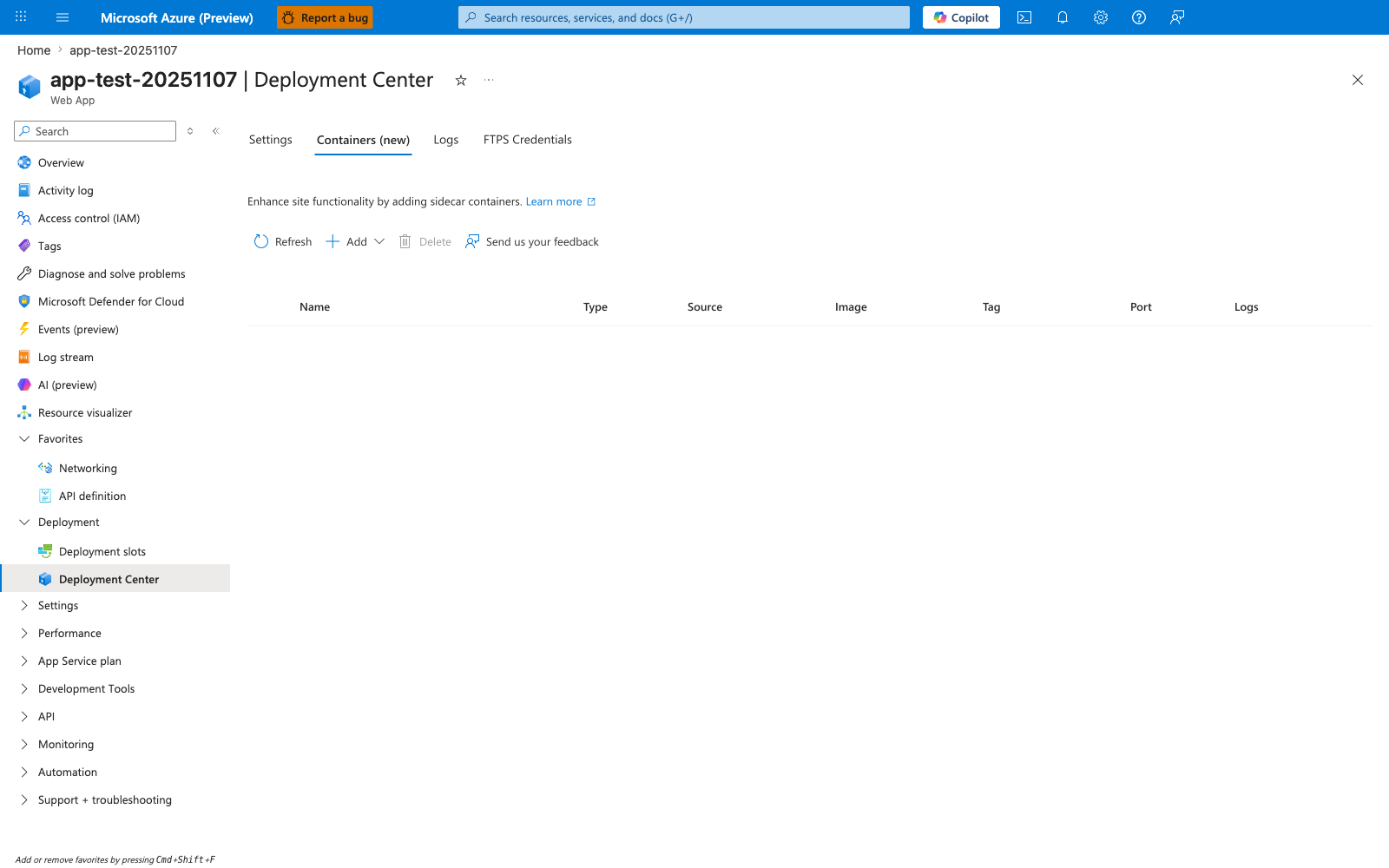
The Containers (new) tab exposes the runtime contract that App Service must satisfy to start a containerized workload. Columns such as Source, Image, Tag, and Port map directly to the image-pull and startup phases: the platform must fetch the selected image, launch it with the configured port, and then watch logs and HTTP reachability to decide whether startup succeeded. The Add action and sidecar-focused table also show that container lifecycle on App Service is not just about one image, but about coordinating the main app container and any companion containers inside the same app boundary.
flowchart TD
    A[Write Dockerfile] --> B[Build image locally]
    B --> C[Push image to registry]
    C --> D[Create or update Web App]
    D --> E[Configure container image and registry]
    E --> F[App Service pulls image on startup]
    F --> G[Platform evaluates startup HTTP reachability]
    G --> H{Health check passes?}
    H -->|Yes| I[App is Running]
    H -->|No| J[Startup failure — check PORT/WEBSITES_PORT, binding, and logs]
Each stage has a corresponding verification step:
| Stage | Verification command |
|---|---|
| Image built | docker run --rm --publish 8080:8080 <IMAGE> — confirm app responds locally |
| Image pushed | az acr repository list --name $REGISTRY_NAME |
| App configured | az webapp config container show --name $APP_NAME --resource-group $RG |
| App running | az webapp show --name $APP_NAME --resource-group $RG --query "state" |
Verify container configuration and running state:
| Command/Code | Purpose |
|---|---|
az webapp config container show | Shows the current container image and registry settings applied to the app |
Name                                 SlotSetting    Value
-----------------------------------  -------------  ---------------------------------------------------
WEBSITES_ENABLE_APP_SERVICE_STORAGE  False          false
DOCKER_REGISTRY_SERVER_URL           False          https://<registry-name>.azurecr.io
DOCKER_CUSTOM_IMAGE_NAME                            DOCKER|<registry-name>.azurecr.io/flask-test:v1
az webapp show \
  --name $APP_NAME \
  --resource-group $RG \
  --query "{name:name, state:state, defaultHostName:defaultHostName, linuxFxVersion:siteConfig.linuxFxVersion}" \
  --output yaml
| Command/Code | Purpose |
|---|---|
--query "{...linuxFxVersion:siteConfig.linuxFxVersion}" | Confirms the container image configured on the app |
defaultHostName: <app-name>.azurewebsites.net
linuxFxVersion: DOCKER|<registry-name>.azurecr.io/flask-test:v1
name: <app-name>
state: Running
Registry Authentication Patterns
App Service supports three registry authentication patterns. Choose based on your registry type and security requirements.
flowchart TD
    Q1{Registry type?} -->|Azure Container Registry| Q2{Production workload?}
    Q1 -->|Docker Hub or other public| A2[No credentials needed\nSet image name only]
    Q1 -->|Private non-ACR registry| A3[Store credentials\nDOCKER_REGISTRY_SERVER_URL\nDOCKER_REGISTRY_SERVER_USERNAME\nDOCKER_REGISTRY_SERVER_PASSWORD]

    Q2 -->|Yes| A1[Managed identity\nacrUseManagedIdentityCreds: true]
    Q2 -->|No / Dev| A4[Admin credentials\ndocker-registry-server-user/password]
ACR with Managed Identity (Recommended)
Managed identity eliminates stored credentials and is the recommended pattern for ACR.
| Command/Code | Purpose |
|---|---|
az webapp identity assign | Enables system-assigned managed identity on the web app |
az role assignment create \
  --assignee $PRINCIPAL_ID \
  --scope $REGISTRY_RESOURCE_ID \
  --role "AcrPull"
| Command/Code | Purpose |
|---|---|
--role "AcrPull" | Grants the minimum permission needed to pull images from ACR |
--scope $REGISTRY_RESOURCE_ID | Limits the role to a specific registry |
roleDefinitionName: AcrPull
principalType: ServicePrincipal
scope: /subscriptions/<subscription-id>/resourceGroups/<resource-group>/providers/Microsoft.ContainerRegistry/registries/<registry-name>
az webapp config set \
  --name $APP_NAME \
  --resource-group $RG \
  --generic-configurations '{"acrUseManagedIdentityCreds": true}'
| Command/Code | Purpose |
|---|---|
acrUseManagedIdentityCreds: true | Instructs App Service to use the managed identity for ACR image pulls instead of stored credentials |
Verify managed identity is active:
az webapp config show \
  --name $APP_NAME \
  --resource-group $RG \
  --query "acrUseManagedIdentityCreds" \
  --output tsv
| Command/Code | Purpose |
|---|---|
--query "acrUseManagedIdentityCreds" | Confirms managed identity image pull is enabled |
Private Non-ACR Registry (Credentials)
For Docker Hub private repositories or any non-ACR private registry, supply credentials:
az webapp config container set \
  --name $APP_NAME \
  --resource-group $RG \
  --container-image-name $IMAGE_NAME \
  --docker-registry-server-url $REGISTRY_URL \
  --docker-registry-server-user $REGISTRY_USER \
  --docker-registry-server-password $REGISTRY_PASSWORD
| Command/Code | Purpose |
|---|---|
--docker-registry-server-url | Full URL of the private registry (for example, https://index.docker.io) |
--docker-registry-server-user | Registry username stored as an encrypted app setting |
--docker-registry-server-password | Registry password stored as an encrypted app setting |
Credentials are not exposed to application code
App Service stores registry credentials in the reserved environment variables DOCKER_REGISTRY_SERVER_URL, DOCKER_REGISTRY_SERVER_USERNAME, and DOCKER_REGISTRY_SERVER_PASSWORD. These variables are not forwarded to the application container for security reasons.
Network-Protected Registry
To pull from a registry inside a virtual network or behind a private endpoint, enable VNet image pull:
az webapp config set \
  --name $APP_NAME \
  --resource-group $RG \
  --generic-configurations '{"vnetImagePullEnabled": true}'
| Command/Code | Purpose |
|---|---|
vnetImagePullEnabled: true | Routes image pull traffic through the app's VNet integration instead of the public internet |
VNet integration is a prerequisite
The app must have VNet integration configured and DNS resolution in place before enabling vnetImagePullEnabled. Without VNet integration, the setting has no effect.
Multi-Container and Sidecar Pattern
App Service supports adding up to nine sidecar containers alongside the main application container. Sidecars run in the same App Service plan and share the network namespace with the main container.
flowchart TD
    subgraph Plan ["App Service Plan"]
        subgraph App ["Web App"]
            M[Main container\nYour application]
            S1[Sidecar 1\nOpenTelemetry collector]
            S2[Sidecar 2\nLog shipper]
        end
    end
    M -- shared network --> S1
    M -- shared network --> S2
    S1 --> OBS[Observability backend]
    S2 --> LOG[Log aggregator]
Use sidecars for:
- Observability agents (OpenTelemetry, Datadog, Dynatrace)
- Log shippers (Fluent Bit, Logstash)
- Configuration or secrets sync sidecars
Sidecar support is Linux-only
Sidecars are available for Linux App Service apps, including both code-only (built-in runtime) apps and custom container apps. Windows containers do not support sidecars.
Configure a Sidecar
az webapp sitecontainers create \
  --name $APP_NAME \
  --resource-group $RG \
  --container-name $SIDECAR_NAME \
  --image $SIDECAR_IMAGE \
  --is-main false \
  --target-port 4317
| Command/Code | Purpose |
|---|---|
az webapp sitecontainers create | Attaches a sidecar container to the main application container |
--is-main false | Marks this as a sidecar — the main container must already exist |
--target-port | Port the sidecar listens on inside the app (for example, 4317 for OpenTelemetry gRPC) |
{
  "authType": "Anonymous",
  "image": "otel/opentelemetry-collector:latest",
  "isMain": false,
  "name": "otel-collector",
  "targetPort": "4317",
  "type": "Microsoft.Web/sites/sitecontainer"
}
CLI command name
The Azure CLI command for managing sidecar containers is az webapp sitecontainers, not az webapp sidecar. The Microsoft Learn documentation refers to the feature as "sidecar containers."
Port Configuration and Health Checks
App Service sends startup HTTP checks to verify that the app became reachable. For Linux custom containers, port handling is more nuanced than a simple WEBSITES_PORT probe rule: the app should usually bind to the runtime-injected PORT value, and WEBSITES_PORT is one of the settings that can influence platform behavior. See Container HTTP Pings — Lab Guide for experimental evidence on Linux port behavior.
If your custom container uses a non-default HTTP port, configure WEBSITES_PORT and make sure the process actually listens on the value exposed through PORT:
az webapp config appsettings set \
  --name $APP_NAME \
  --resource-group $RG \
  --settings WEBSITES_PORT=8080
| Command/Code | Purpose |
|---|---|
WEBSITES_PORT | App setting commonly used to declare the custom container HTTP port; on Linux, the app should usually bind to the runtime-injected PORT value |
Check both PORT binding and WEBSITES_PORT
On Linux custom containers, startup failures are not explained by WEBSITES_PORT mismatch alone. Verify that the app binds to 0.0.0.0 on the runtime-injected PORT, then compare that behavior with any configured WEBSITES_PORT value.
Security Considerations
| Topic | Recommendation |
|---|---|
| ACR image pulls | Use managed identity — eliminates stored credentials and supports rotation-free operation |
| Non-ACR registry credentials | Store as app settings; never hardcode in Dockerfile or application code |
| Network-protected registry | Use VNet integration + vnetImagePullEnabled instead of exposing registry to the public internet |
| Windows containers | Service principal auth is retired; migrate to managed identity |
| Persistent storage | Do not write persistent data to the container filesystem; use the /home directory or Azure Files |
See Also
- Container Deployment — Operations Guide
- Node.js Custom Container Recipe
- Python Custom Container Recipe
- Container Did Not Respond to HTTP Pings — Playbook
- Windows Container Health Probes — Playbook
- Container HTTP Pings — Lab Guide