Scaling Operations
Scale App Service capacity safely by combining vertical and horizontal scaling with autoscale rules, guardrails, and verification checks. This guide is language-agnostic and focuses on platform-level operations.
flowchart TD
    Metric[Monitor Metric] --> Rule{Rule Triggered?}
    Rule -- CPU > 70% --> ScaleOut[Scale Out]
    Rule -- CPU < 30% --> ScaleIn[Scale In]

    ScaleOut --> Cooldown[Cooldown Period]
    ScaleIn --> Cooldown

Cooldown --> MetricPrerequisites
- Azure CLI authenticated (
az login) - Existing App Service Plan and Web App
- Metrics flowing to Azure Monitor
- Variables set in shell:
RGAPP_NAMEPLAN_NAME
When to Use
Procedure
Understand Scale Up vs Scale Out
- Scale up (vertical): change plan SKU for more CPU/memory per instance
- Scale out (horizontal): increase worker instance count
- Rule of thumb:
- scale up when single instance memory/CPU saturation occurs
- scale out when traffic concurrency is the bottleneck
Inspect Current Capacity
az appservice plan show \
  --resource-group $RG \
  --name $PLAN_NAME \
  --query "{sku:sku.name,capacity:sku.capacity,workers:numberOfWorkers,kind:kind}" \
  --output json
Sample output (PII-masked):
Scale Up (Vertical Scaling)
Use scale up when one instance is consistently overloaded even at low concurrency.
After scaling up, verify effective SKU:
az appservice plan show \
  --resource-group $RG \
  --name $PLAN_NAME \
  --query "sku.name" \
  --output tsv
Scale Out (Horizontal Scaling)
Use scale out to improve throughput and reduce queueing latency.
az appservice plan update \
  --resource-group $RG \
  --name $PLAN_NAME \
  --number-of-workers 3 \
  --output json
Check current worker count:
az appservice plan show \
  --resource-group $RG \
  --name $PLAN_NAME \
  --query "numberOfWorkers" \
  --output tsv
Create Autoscale Baseline
Create autoscale settings on the App Service Plan resource.
PLAN_ID=$(az appservice plan show \
  --resource-group $RG \
  --name $PLAN_NAME \
  --query id \
  --output tsv)

az monitor autoscale create \
  --resource-group $RG \
  --resource $PLAN_ID \
  --resource-type Microsoft.Web/serverfarms \
  --name "autoscale-$PLAN_NAME" \
  --min-count 1 \
  --max-count 5 \
  --count 2 \
  --output json
Add CPU-based scale-out rule:
az monitor autoscale rule create \
  --resource-group $RG \
  --autoscale-name "autoscale-$PLAN_NAME" \
  --condition "Percentage CPU > 70 avg 10m" \
  --scale out 1 \
  --cooldown 10 \
  --output json
Add CPU-based scale-in rule:
az monitor autoscale rule create \
  --resource-group $RG \
  --autoscale-name "autoscale-$PLAN_NAME" \
  --condition "Percentage CPU < 35 avg 20m" \
  --scale in 1 \
  --cooldown 15 \
  --output json
Portal view: Autoscale setting blade
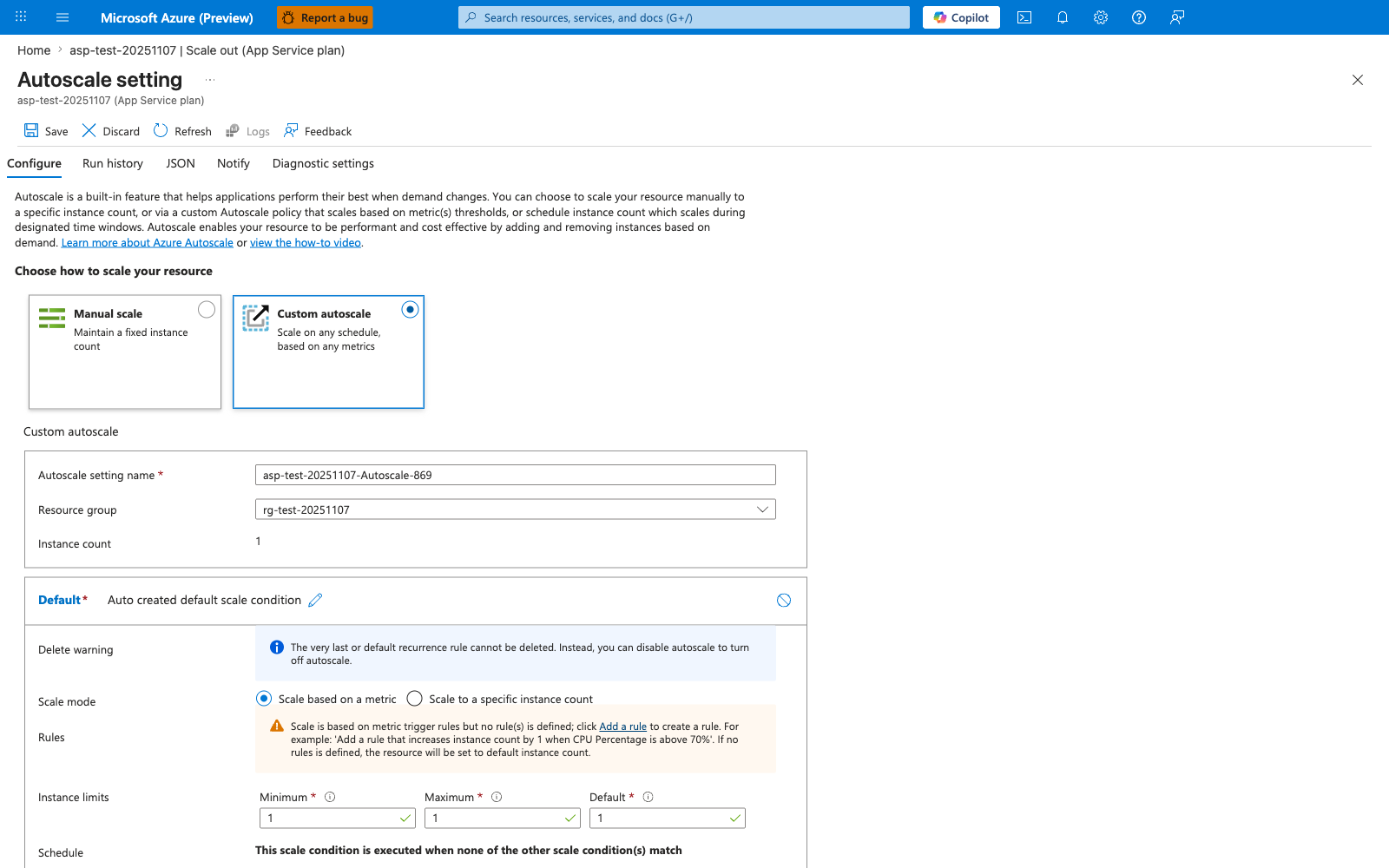
The Autoscale setting blade is the Portal surface where the az monitor autoscale create and az monitor autoscale rule create commands above land. Three details in this view are operationally critical: Custom autoscale is selected (the only mode that honors metric-based rules — Manual scale would ignore every rule defined below), the auto-generated Default scale condition is the implicit fallback that runs when no other condition matches, and the warning beneath Rules ("no rule(s) is defined") is exactly the gap the two az monitor autoscale rule create commands above (scale-out at CPU > 70% and scale-in at CPU < 35%) close. The Instance limits row currently reads Minimum 1 / Maximum 1 / Default 1, which is the single most common autoscale anti-pattern: every rule will fire but instance count never moves because the bounds are pinned to 1 — confirm --min-count and --max-count from the CLI command above are reflected here as 1 and 5 respectively before declaring the baseline complete.
Add Schedule-Based Scaling
For predictable traffic windows, combine metric autoscale with schedules.
az monitor autoscale profile create \
  --resource-group $RG \
  --autoscale-name "autoscale-$PLAN_NAME" \
  --name "business-hours" \
  --min-count 2 \
  --max-count 8 \
  --count 3 \
  --recurrence "timezone=UTC days=Monday Tuesday Wednesday Thursday Friday hours=08 minutes=00" \
  --output json
Avoid aggressive scale-in
Keep scale-in thresholds conservative and cooldown periods longer than scale-out. Fast scale-in can cause oscillation and cold-instance penalties.
Configure Safe Runtime Settings for Scale Events
Keep operational settings that improve scale behavior:
az webapp config appsettings set \
  --resource-group $RG \
  --name $APP_NAME \
  --settings \
    WEBSITE_HEALTHCHECK_MAXPINGFAILURES=10 \
    WEBSITES_CONTAINER_START_TIME_LIMIT=1800 \
  --output json
These settings help absorb startup variance during scale-out and reduce false unhealthy detection.
Observe Autoscale Execution
az monitor autoscale show \
  --resource-group $RG \
  --name "autoscale-$PLAN_NAME" \
  --query "{enabled:enabled,profiles:profiles[].name,notifications:notifications}" \
  --output json
Recent autoscale activity:
az monitor activity-log list \
  --resource-group $RG \
  --max-events 20 \
  --offset 1d \
  --query "[?contains(operationName.value, 'Autoscale')].{time:eventTimestamp,status:status.value,operation:operationName.localizedValue}" \
  --output table
Verification
- Plan SKU matches expected tier
- Worker count changes correctly under load
- Autoscale profile is enabled
- Activity log records scale actions
- Application SLO remains within target during scale transitions
Rollback / Troubleshooting
Autoscale does not trigger
- Confirm metric namespace and condition syntax
- Check evaluation window (
avg 10m) is long enough - Verify min/max bounds are not preventing action
Scale actions trigger but performance remains poor
- Inspect dependency bottlenecks (database, downstream APIs)
- Verify health check endpoint is lightweight and reliable
- Confirm outbound networking path is not constrained
Scale-in causes transient errors
- Increase scale-in cooldown
- Lower scale-in aggressiveness
- Ensure the application tolerates instance recycling
Advanced Topics
Multi-signal Autoscale Design
CPU-only autoscale is often insufficient. Consider combined signals:
- CPU percentage
- Memory percentage
- HTTP queue length
- P95 latency
Use one signal for rapid scale-out and another for conservative scale-in.
Regional Resilience and Capacity
For critical workloads, pair scaling with multi-region routing:
- Keep warm baseline capacity in secondary region
- Route with Front Door or Traffic Manager
- Test failover with production-like traffic replay
Governance for Scaling Changes
- Restrict plan updates through RBAC
- Use change windows for SKU transitions
- Capture rationale in incident/change records
Enterprise Considerations
Standardize autoscale profiles by environment (dev/test/prod), apply Azure Policy for minimum SKU and HTTPS controls, and audit scaling actions centrally through activity logs.
Language-Specific Details
For language-specific operational guidance, see: - Node.js Guide - Python Guide - Java Guide - .NET Guide
See Also
- Operations Index
- Health and Recovery
- Cost Optimization
- Scale up an App Service plan (Microsoft Learn)
- Azure Monitor autoscale (Microsoft Learn)