02 - First Deployment to Azure App Service
This chapter deploys the Flask app from 01 - Local Run to Azure App Service in a few minutes using az webapp up. It uses public access and a Basic B1 plan so you can focus on the fastest first deployment path.
Deployment Scope
Service: App Service (Linux, Python 3.11) | Access: Public internet | Tier: Basic B1
This walkthrough intentionally skips VNet integration, private endpoints, and managed identity. For that production-style pattern, use Private Network Deployment Recipe.
flowchart TD
    INET[Internet] --> WA[Azure App Service\nLinux Web App\nPython 3.11]
    WA --> BACKEND[Optional Backend Services\nDatabase / Storage / APIs]

style WA fill:#0078d4,color:#fffPrerequisites
- Completed 01 - Local Run
- Azure CLI authenticated with
az login - Flask app source available in your current working directory
Main Content
Step 1: Set deployment variables
| Command/Parameter | Purpose |
|---|---|
RG="rg-flask-tutorial" | Defines the resource group name that will contain the deployment. |
APP_NAME="app-flask-tutorial-abc123" | Sets the globally unique web app name. |
LOCATION="koreacentral" | Chooses the Azure region for the deployment. |
Step 2: Deploy with az webapp up
az webapp up --name $APP_NAME --resource-group $RG --location $LOCATION --runtime "PYTHON:3.11" --sku B1
| Command/Parameter | Purpose |
|---|---|
az webapp up --name $APP_NAME --resource-group $RG --location $LOCATION --runtime "PYTHON:3.11" --sku B1 | Creates the resource group, App Service plan, and web app if needed, then uploads and deploys the current app source. |
--name $APP_NAME | Uses the specified globally unique web app name. |
--resource-group $RG | Creates or reuses the target resource group. |
--location $LOCATION | Places the deployment in the selected Azure region. |
--runtime "PYTHON:3.11" | Selects the Python 3.11 App Service runtime. |
--sku B1 | Uses the Basic B1 pricing tier, which is compatible with a simple public deployment. |
Expected output
The webapp 'app-flask-tutorial-abc123' doesn't exist
Creating Resource group 'rg-flask-tutorial' ...
Creating AppServicePlan 'appsvc_linux_koreacentral' ...
Creating webapp 'app-flask-tutorial-abc123' ...
Configuring default logging for the app, if not already enabled
Creating zip with contents of dir ...
Deploying from zip file ...
You can launch the app at http://app-flask-tutorial-abc123.azurewebsites.net
Build automation: quick-start vs production
az webapp up performs an Oryx/Kudu build on App Service during deployment (equivalent to SCM_DO_BUILD_DURING_DEPLOYMENT=true). That is fine for this quick-start and for local development, but production deployments should publish a pre-built artifact and set SCM_DO_BUILD_DURING_DEPLOYMENT=false for deterministic, reproducible releases. See Best Practices: SCM_DO_BUILD vs pre-built artifacts.
Step 3: Verify the deployment
WEB_APP_URL="https://$(az webapp show --resource-group $RG --name $APP_NAME --query defaultHostName --output tsv)"
curl $WEB_APP_URL/health
| Command/Parameter | Purpose |
|---|---|
WEB_APP_URL="https://$(az webapp show --resource-group $RG --name $APP_NAME --query defaultHostName --output tsv)" | Builds the site URL from the web app hostname returned by Azure. |
az webapp show --resource-group $RG --name $APP_NAME --query defaultHostName --output tsv | Returns only the default hostname for the deployed app. |
--resource-group $RG | Queries the web app inside the tutorial resource group. |
--name $APP_NAME | Selects the deployed web app whose hostname is needed. |
--query defaultHostName | Extracts only the default hostname field from the response. |
--output tsv | Formats the hostname as plain text for shell substitution. |
curl $WEB_APP_URL/health | Calls the Flask health endpoint to confirm the app is responding. |
Step 4: View logs
Enable application logging first
az webapp log tail is most useful after filesystem application logging is enabled.
Note:
az webapp log tailmay not work reliably for Linux App Service. Use the Azure Portal Log stream or/home/LogFilesas alternatives.
az webapp log config --resource-group $RG --name $APP_NAME --application-logging filesystem --level information
az webapp log tail --resource-group $RG --name $APP_NAME
| Command/Parameter | Purpose |
|---|---|
az webapp log config --resource-group $RG --name $APP_NAME --application-logging filesystem --level information | Enables filesystem application logging so the log stream contains app output. |
--resource-group $RG | Targets the resource group that contains the web app. |
--name $APP_NAME | Selects the web app to configure for logging. |
--application-logging filesystem | Writes application logs to the App Service filesystem. |
--level information | Captures informational, warning, and error log events. |
az webapp log tail --resource-group $RG --name $APP_NAME | Streams live application and platform logs from the deployed web app. |
--resource-group $RG | Reads logs from the tutorial resource group. |
--name $APP_NAME | Streams logs for the deployed Flask app. |
Step 5: Cleanup
| Command/Parameter | Purpose |
|---|---|
az group delete --name $RG --yes --no-wait | Deletes the tutorial resource group and all resources created by az webapp up. |
--name $RG | Targets the resource group used in this tutorial. |
--yes | Skips the interactive confirmation prompt. |
--no-wait | Starts deletion asynchronously so the terminal returns immediately. |
Advanced Topics
When you are ready for private connectivity, move to a topology that adds VNet integration, private endpoints, and managed identity.
Next Steps
Run It in the Portal
Portal view: Web App Overview blade - first-deploy verification surface
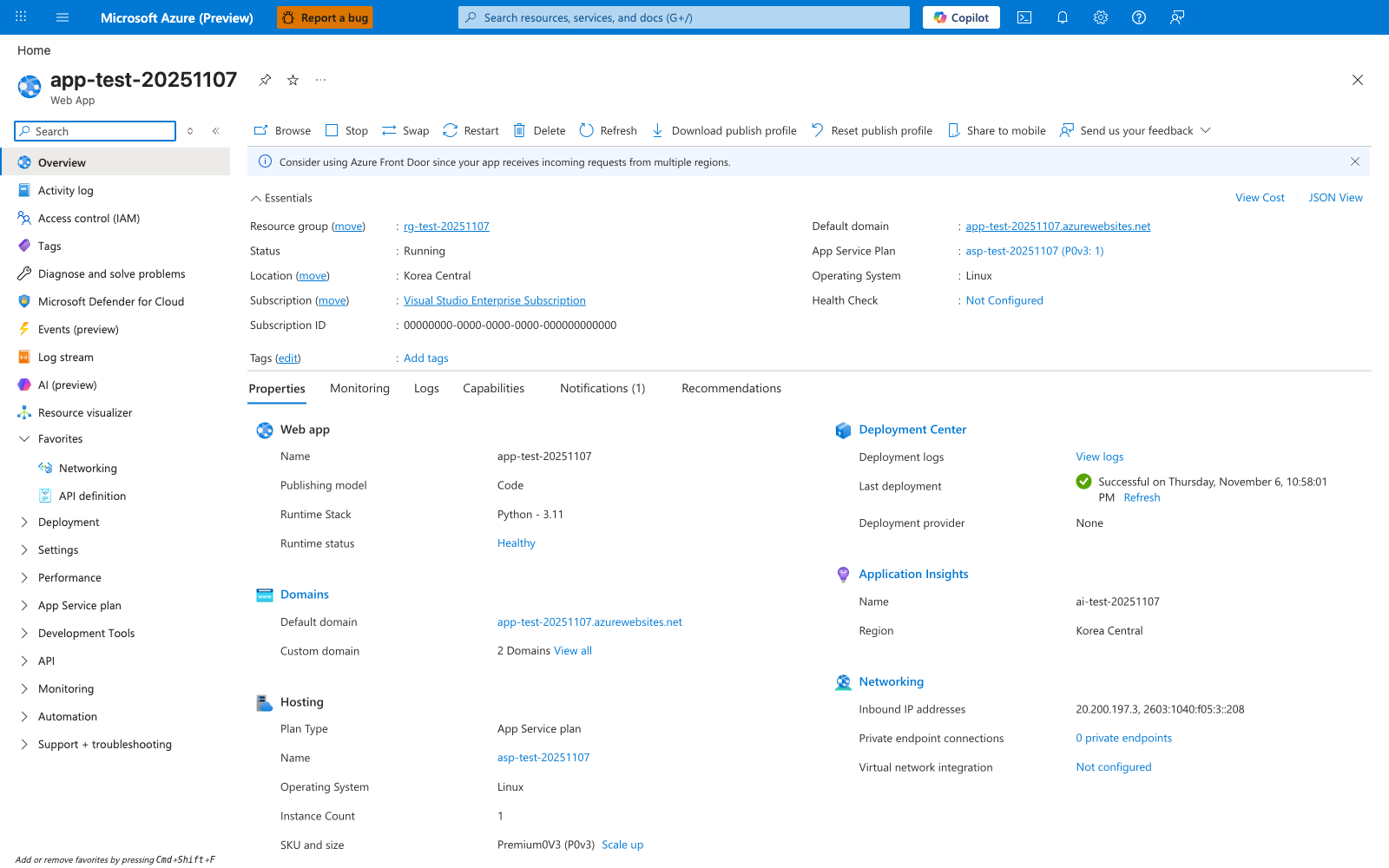
After running az webapp up in this tutorial, the Overview blade is the first Portal verification surface. The Essentials panel confirms the app that az webapp up created or reused: Status: Running, Operating System: Linux, Default domain, and the attached App Service Plan are all visible on this blade. In the Properties tab, Runtime Stack: Python - 3.11 and Runtime status: Healthy confirm that the Flask app is running on the expected Python worker. Use the Default domain value to open the deployed app in a browser, which is the Portal-side check that corresponds to the tutorial's curl $WEB_APP_URL/health verification step.