01 - Run Flask Locally with App Service Parity
This guide sets up a local Flask workflow that mirrors Azure App Service behavior. You will run both development and production-style servers to reduce deployment surprises.
Infrastructure Context
Service: App Service (Linux, Standard S1) | Network: VNet integrated | VNet: ✅
This tutorial assumes a production-ready App Service deployment with VNet integration, private endpoints for backend services, and managed identity for authentication.
flowchart TD
    INET[Internet] -->|HTTPS| WA[Web App\nApp Service S1\nLinux Python 3.11]

    subgraph VNET["VNet 10.0.0.0/16"]
        subgraph INT_SUB["Integration Subnet 10.0.1.0/24\nDelegation: Microsoft.Web/serverFarms"]
            WA
        end
        subgraph PE_SUB["Private Endpoint Subnet 10.0.2.0/24"]
            PE_KV[PE: Key Vault]
            PE_SQL[PE: Azure SQL]
            PE_ST[PE: Storage]
        end
    end

    PE_KV --> KV[Key Vault]
    PE_SQL --> SQL[Azure SQL]
    PE_ST --> ST[Storage Account]

    subgraph DNS[Private DNS Zones]
        DNS_KV[privatelink.vaultcore.azure.net]
        DNS_SQL[privatelink.database.windows.net]
        DNS_ST[privatelink.blob.core.windows.net]
    end

    PE_KV -.-> DNS_KV
    PE_SQL -.-> DNS_SQL
    PE_ST -.-> DNS_ST

    WA -.->|System-Assigned MI| ENTRA[Microsoft Entra ID]
    WA --> AI[Application Insights]

    style WA fill:#0078d4,color:#fff
    style VNET fill:#E8F5E9,stroke:#4CAF50
style DNS fill:#E3F2FDPrerequisites
- Python 3.11 or newer
- Repository cloned locally
- Terminal with Bash, Zsh, or PowerShell
Main Content
Create and activate a virtual environment
| Command | Purpose |
|---|---|
cd apps/python-flask | Moves into the Flask application directory before creating the environment. |
python -m venv .venv | Creates an isolated Python virtual environment in .venv. |
source .venv/bin/activate | Activates the virtual environment in the current shell session. |
On Windows:
Install dependencies from requirements.txt
| Command | Purpose |
|---|---|
pip install --upgrade pip | Updates pip to the latest available version in the virtual environment. |
pip install -r requirements.txt | Installs all Python packages required by the Flask app. |
Run with Flask CLI for development
flask run provides fast iteration and debug-friendly behavior:
| Command | Purpose |
|---|---|
export FLASK_APP=src.app:app | Points Flask CLI to the application object exposed by src.app. |
export FLASK_ENV=development | Enables Flask development-friendly behavior for local work. |
flask run --port 8000 | Starts the Flask development server on port 8000. |
--port 8000 | Binds the local development server to TCP port 8000. |
Verify:
| Command | Purpose |
|---|---|
curl http://localhost:8000/health | Sends a test request to the health endpoint to confirm the app is responding. |
Run with Gunicorn for production parity
App Service Linux runs Python apps via Gunicorn. Validate the same startup shape locally:
| Command | Purpose |
|---|---|
export PORT=8000 | Sets the port variable that matches how App Service passes the listening port. |
gunicorn --bind=0.0.0.0:$PORT src.app:app | Starts the Flask app with Gunicorn for production-style local testing. |
--bind=0.0.0.0:$PORT | Listens on all network interfaces using the port stored in PORT. |
src.app:app | Tells Gunicorn which Python module and WSGI app object to load. |
Validate worker and timeout behavior
Tune worker and timeout values to simulate production load:
| Command | Purpose |
|---|---|
gunicorn --bind=0.0.0.0:$PORT --workers 2 --timeout 120 src.app:app | Runs Gunicorn with explicit worker and timeout settings to simulate production behavior. |
--bind=0.0.0.0:$PORT | Exposes the service on the configured host and port. |
--workers 2 | Starts two worker processes to handle concurrent requests. |
--timeout 120 | Restarts workers if a request takes longer than 120 seconds. |
sequenceDiagram
    participant Dev as Developer
    participant Flask as flask run
    participant Guni as gunicorn
    participant App as Flask WSGI app
    Dev->>Flask: Local debug request
    Flask->>App: Execute route
    Dev->>Guni: Production-parity request
    Guni->>App: Worker handles request
Advanced Topics
Add python-dotenv for local .env loading, then compare request latency and memory profile between Flask development server and Gunicorn workers.
Run It in the Portal
Portal view: App Service plan (Linux) - the deployment target this tutorial emulates locally
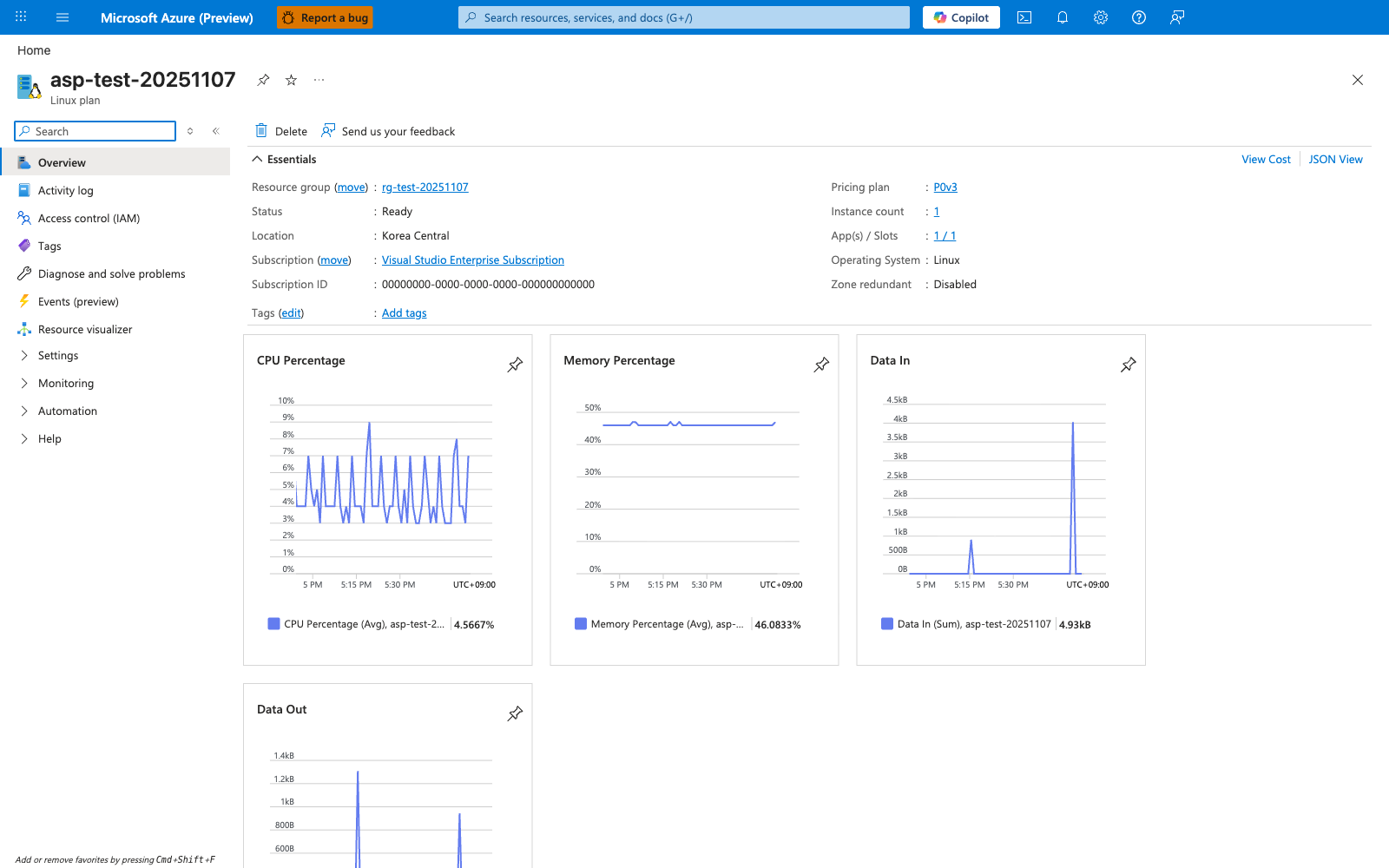
Your local Flask + Gunicorn setup in this tutorial is meant to mirror the runtime shape of a Linux App Service app, not every plan-level limit shown on this blade. The visible Operating system: Linux confirms the worker OS, and the hosted-app list on the right shows that an App Service plan is the shared deployment target used by later tutorials. The CPU Percentage and Memory Percentage charts are the Portal-side signals you compare against when local Gunicorn tests suggest the app is using too much CPU or memory under load. Use this blade to verify that the target app runs on a Linux App Service plan before moving from local validation to Azure deployment.