Python Tutorial Overview
This tutorial path walks you from a local Flask run to a production-ready App Service deployment.
Estimated time: ~2-3 hours total
flowchart TD
    S01[01 Local Run] --> S02[02 First Deploy]
    S02 --> S03[03 Configuration]
    S03 --> S04[04 Logging & Monitoring]
    S04 --> S05[05 Infrastructure as Code]
    S05 --> S06[06 CI/CD]
S06 --> S07[07 Custom Domain & SSL]Prerequisites
- Python 3.11 or newer
- Azure CLI installed and signed in
- Visual Studio Code
- Access to an Azure subscription and resource group
Tutorial Steps
| Step | Description | Link |
|---|---|---|
| 01 | Run the app locally with App Service parity. | 01 - Local Run |
| 02 | Create the first deployment to Azure App Service. | 02 - First Deploy |
| 03 | Configure app settings, runtime settings, and environment values. | 03 - Configuration |
| 04 | Add logging and monitoring for operational visibility. | 04 - Logging and Monitoring |
| 05 | Define the same deployment with infrastructure as code. | 05 - Infrastructure as Code |
| 06 | Set up CI/CD for repeatable deployments. | 06 - CI/CD |
| 07 | Bind a custom domain and enable SSL. | 07 - Custom Domain and SSL |
Recommended Path
Follow the steps in order. Each tutorial builds on the previous one and assumes the same Python App Service app.
Run It in the Portal
Portal view: App Service Web App overview (tutorial destination blade)
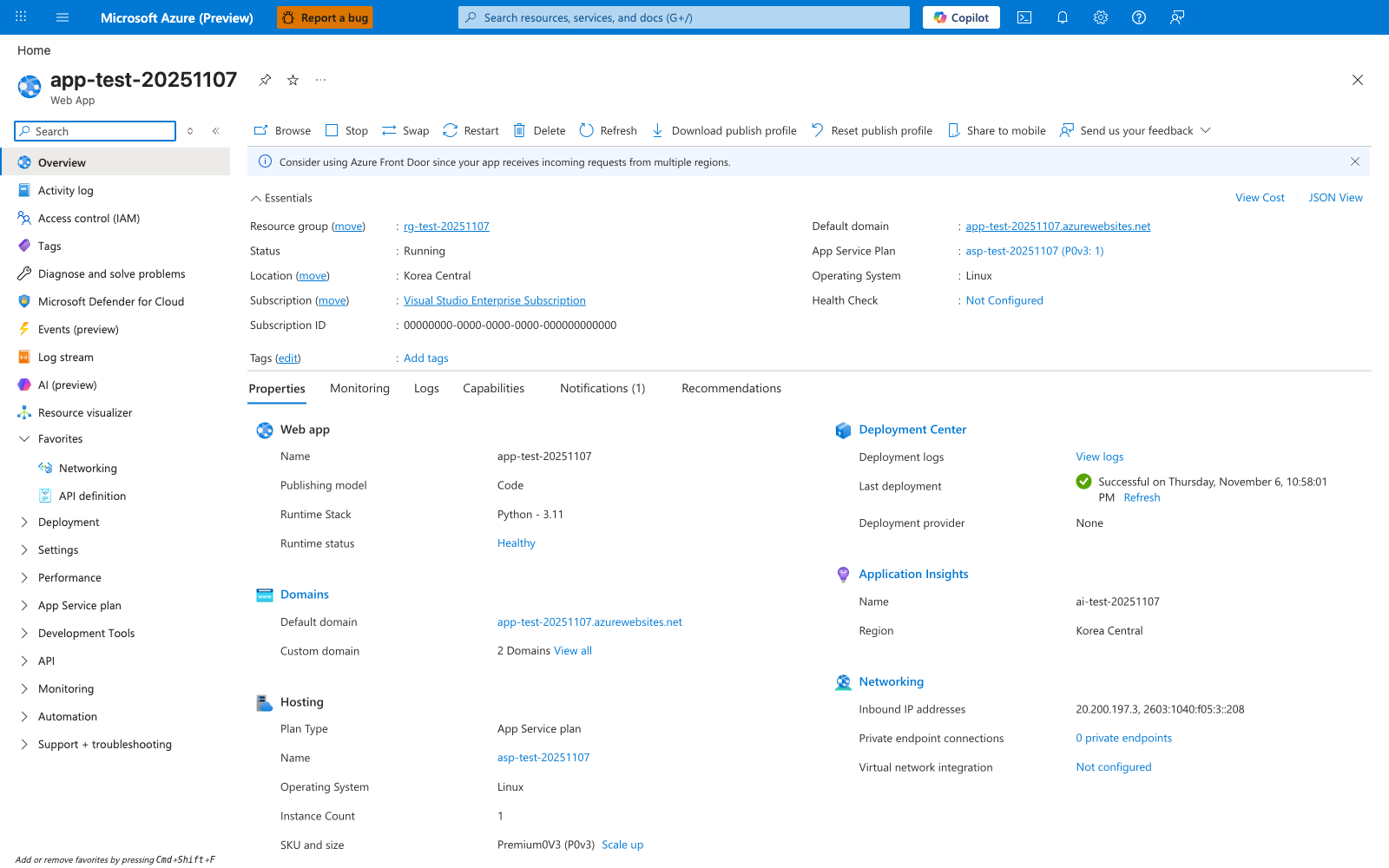
The Web App Overview blade brings the main tutorial state into one visible page. The Essentials panel shows Status: Running, Default domain, App Service Plan: asp-test-20251107 (P0v3: 1), and Operating System: Linux, while the selected Properties tab adds Runtime Stack: Python - 3.11 and Runtime status: Healthy under Web app. The same blade also shows hosting, deployment, monitoring, and networking summaries in the Hosting, Deployment Center, Application Insights, and Networking sections. The command bar at the top exposes the visible management actions for the app, including Browse, Stop, Swap, Restart, Delete, and Refresh.