Custom Container (Docker + Gunicorn + SSH)
Run Flask on App Service with a custom Linux container when you need full OS/package control.
Architecture
flowchart TD
    Client[Client] --> Runtime[App Service container runtime]
    ACR[(Azure Container Registry)] --> Runtime
Solid arrows show runtime data flow. Dashed arrows show identity and authentication.
Prerequisites
- Azure Container Registry (ACR) or other supported container registry
- App Service for Containers
- Flask app with
gunicornentry point
Step-by-Step Guide
Step 1: Build a container image for App Service
FROM python:3.11-slim

ENV PYTHONDONTWRITEBYTECODE=1 \
    PYTHONUNBUFFERED=1

RUN apt-get update \
    && apt-get install --yes --no-install-recommends openssh-server \
    && rm -rf /var/lib/apt/lists/*

WORKDIR /app
COPY apps/python-flask/requirements.txt /app/requirements.txt
RUN pip install --no-cache-dir -r /app/requirements.txt

COPY apps/python-flask /app

# SSH for Azure App Service container diagnostics
RUN mkdir -p /var/run/sshd
COPY apps/python-flask/sshd_config /etc/ssh/sshd_config
RUN echo "root:Docker!" | chpasswd

COPY apps/python-flask/entrypoint.sh /entrypoint.sh
RUN chmod +x /entrypoint.sh

EXPOSE 2222 8000
CMD ["/entrypoint.sh"]
This example assumes the Docker build context is the repository root. If you build from apps/python-flask/ instead, drop the apps/python-flask/ prefix from each COPY source path.
entrypoint.sh:
#!/usr/bin/env bash
set -euo pipefail

service ssh start
exec gunicorn --bind 0.0.0.0:${PORT:-8000} app:app --workers 2 --timeout 120
Step 2: Push image and configure App Service
az acr build \
  --registry "$ACR_NAME" \
  --image flask-ref:latest \
  --file "apps/python-flask/Dockerfile" .

az webapp config container set \
  --resource-group "$RG" \
  --name "$APP_NAME" \
  --container-image-name "$ACR_NAME.azurecr.io/flask-ref:latest" \
  --container-registry-url "https://$ACR_NAME.azurecr.io"
Complete Example
sshd_config:
Port 2222
ListenAddress 0.0.0.0
LoginGraceTime 180
X11Forwarding no
Ciphers aes128-ctr,aes192-ctr,aes256-ctr
MACs hmac-sha2-256,hmac-sha2-512
StrictModes yes
SyslogFacility DAEMON
PasswordAuthentication yes
PermitEmptyPasswords no
PermitRootLogin yes
Subsystem sftp internal-sftp
Troubleshooting
- Container exits immediately:
- Confirm
CMDpoints to executable script and script starts Gunicorn in foreground.
- Confirm
- App responds
502after deploy:- Ensure Gunicorn binds
0.0.0.0:${PORT}andPORTis not hard-coded.
- Ensure Gunicorn binds
- Cannot SSH:
- Check port
2222exposure and App Service SSH console compatibility.
- Check port
Advanced Topics
- Use multi-stage builds and wheelhouse caching to reduce image size.
- Add health checks and a non-root runtime user where compatible.
- Pin base image digest to control supply chain changes.
Run It in the Portal
Portal view: Deployment Center - Containers (new) tab (sidecar registration for custom Python images)
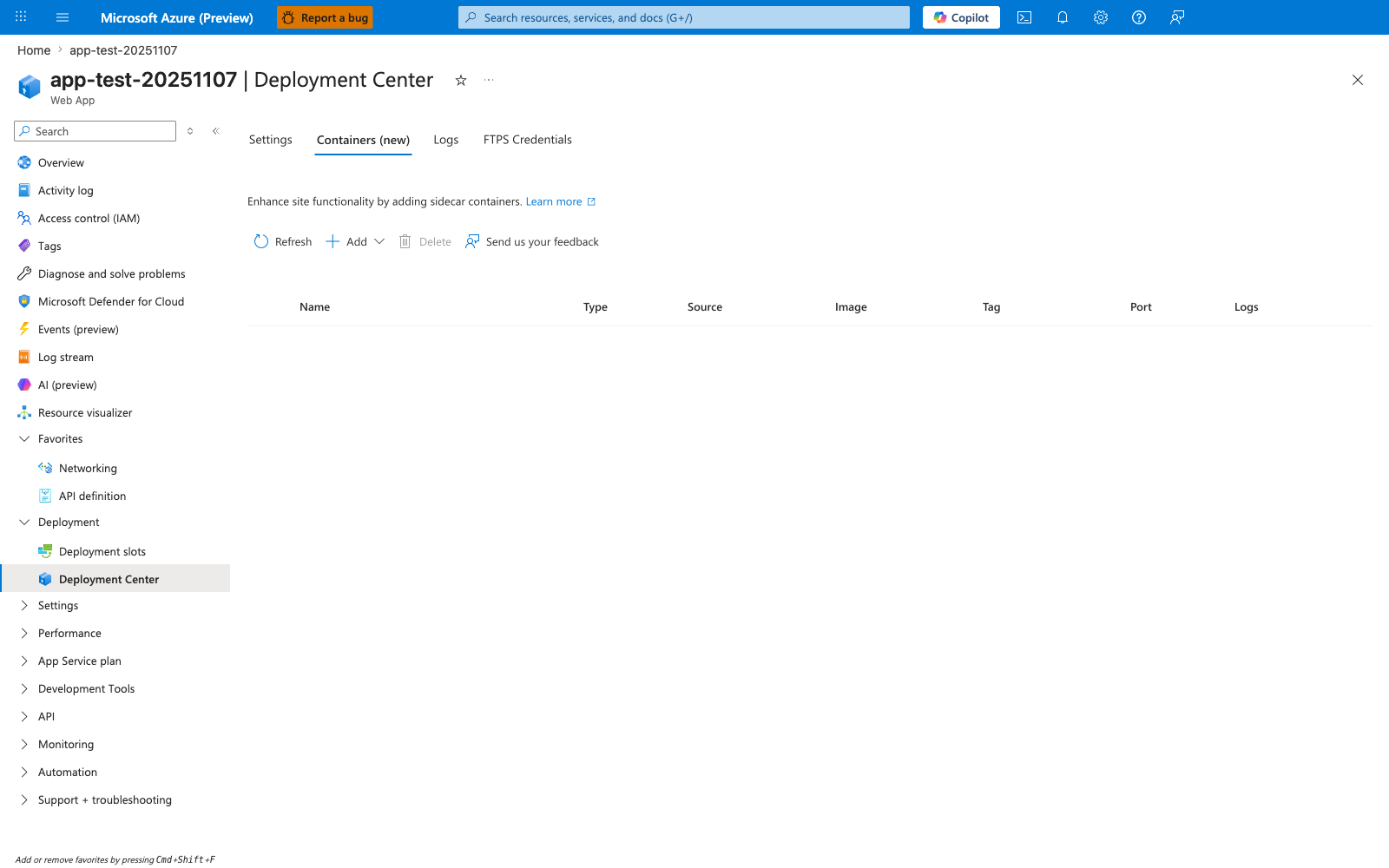
The Deployment Center Containers (new) tab is the Portal surface for the sidecar portion of App Service container management around the custom Python image used in this recipe. The visible empty table and Add action show that no extra companion containers are registered yet, which is the expected starting state for a single-container deployment. Use this blade as a Portal check that you're on the container-management surface before adding any additional containers around the main Python image.