Bring Your Own Storage (BYOS)
Mount Azure Blob Storage or Azure Files to your App Service instance as a custom storage path. BYOS lets you serve large files — assets, ML models, shared configs — directly from the filesystem without changing your application code.
Architecture
flowchart TD
    Platform[App Service platform] -->|Mount Azure Files share| Mount[/Mounted path\/mnt\/appdata/]
    App[Flask app on App Service] -->|Read/write| Mount
    Mount --> Files[(Azure Files share)]
Solid arrows show runtime data flow. Dashed arrows show identity and authentication.
Blob mounts are read-only
Azure Blob mounts are read-only. Use them for reading large files (models, static assets). For shared write access across instances, use Azure Files BYOS or write directly to Blob Storage via the SDK.
Overview
By default, App Service Linux apps have two filesystem areas:
| Path | Type | Behavior |
|---|---|---|
/home | Network-attached (Azure Files) | Persistent across restarts, shared across all scaled-out instances, slow I/O |
All other paths (e.g. /tmp) | Ephemeral local disk | Fast I/O, wiped on restart, not shared between instances |
D:\home\site\wwwroot | Windows App Service equivalent of /home/site/wwwroot | App code lives here on Windows |
BYOS lets you add a third category: your own Azure Blob container or Azure Files share, mounted at any path you choose.
When to use BYOS
| Scenario | Recommended approach |
|---|---|
| User file uploads | Azure Files BYOS (write) or direct SDK upload |
| Shared static assets across instances | Blob Storage BYOS (read-only) |
| ML model files (large, infrequently updated) | Blob Storage BYOS (read-only) |
| Shared configuration files across instances | Azure Files BYOS |
| Log file aggregation | Azure Files BYOS |
| High-frequency writes (> 100/sec) | Use SDK directly — BYOS adds latency |
Prerequisites
- App Service Plan: Basic tier (B1) or higher
- An Azure Storage account (Blob or Azure Files)
- Mount path must not be
/,/home,/tmp, or conflict with the app's working directory - Place your storage account in the same region as your App Service to minimize latency
- Maximum 5 mounts per app (across all BYOS storage accounts combined)
- Azure Blob mounts are Linux-only — Windows App Service supports Azure Files BYOS only
Mount Types
Azure App Service supports two storage mount types:
| Type | Backend | Access | Best for |
|---|---|---|---|
AzureBlob | Blob container | Read-only | Large files, static assets, ML models |
AzureFiles | Azure Files share | Read/write | Shared writes across instances, configs |
Step 1 — Create a Storage Account and Container/Share
Azure Blob
# Storage account
az storage account create \
  --name "${BASE_NAME}storage" \
  --resource-group "$RG" \
  --sku Standard_LRS \
  --kind StorageV2

# Blob container
az storage container create \
  --name uploads \
  --account-name "${BASE_NAME}storage"
Azure Files
# Azure Files share
az storage share create \
  --name appdata \
  --account-name "${BASE_NAME}storage" \
  --quota 100
Step 2 — Get the Storage Access Key
STORAGE_KEY=$(az storage account keys list \
  --resource-group "$RG" \
  --account-name "${BASE_NAME}storage" \
  --query "[0].value" --output tsv)
Step 3 — Mount the Storage
Using Azure CLI
# Mount Azure Blob container at /mnt/assets (read-only)
az webapp config storage-account add \
  --name "$APP_NAME" \
  --resource-group "$RG" \
  --custom-id uploads-mount \
  --storage-type AzureBlob \
  --account-name "${BASE_NAME}storage" \
  --access-key "$STORAGE_KEY" \
  --share-name uploads \
  --mount-path /mnt/assets

# Mount Azure Files share at /mnt/appdata
az webapp config storage-account add \
  --name "$APP_NAME" \
  --resource-group "$RG" \
  --custom-id appdata-mount \
  --storage-type AzureFiles \
  --account-name "${BASE_NAME}storage" \
  --access-key "$STORAGE_KEY" \
  --share-name appdata \
  --mount-path /mnt/appdata
Using Bicep
resource webApp 'Microsoft.Web/sites@2023-01-01' = {
  name: appName
  location: location
  properties: {
    siteConfig: {
      azureStorageAccounts: {
        'uploads-mount': {
          type: 'AzureBlob'
          accountName: storageAccountName
          shareName: 'uploads'
          mountPath: '/mnt/uploads'
          accessKey: storageAccountKey
        }
        'appdata-mount': {
          type: 'AzureFiles'
          accountName: storageAccountName
          shareName: 'appdata'
          mountPath: '/mnt/appdata'
          accessKey: storageAccountKey
        }
      }
    }
  }
}
Use Key Vault for the storage key
Avoid hardcoding the storage access key in Bicep. Store it in Key Vault and reference it via a Key Vault Reference app setting. See Key Vault References.
Step 4 — Use the Mount in Flask
Azure Blob mounts are read-only — use them to read assets, models, or static files. Azure Files mounts support both reads and writes.
import os
from pathlib import Path
from flask import Flask, request, jsonify, send_file

app = Flask(__name__)

# BLOB MOUNT (/mnt/assets) — read-only
ASSETS_DIR = Path(os.environ.get("ASSETS_PATH", "/mnt/assets"))

# AZURE FILES MOUNT (/mnt/appdata) — read/write
DATA_DIR = Path(os.environ.get("DATA_PATH", "/mnt/appdata"))


@app.get("/api/assets/<filename>")
def get_asset(filename: str):
    """Read from Blob mount (read-only)."""
    dest = ASSETS_DIR / filename
    if not dest.exists():
        return jsonify({"error": "Asset not found"}), 404
    return send_file(dest)


@app.post("/api/data/upload")
def upload_file():
    """Write to Azure Files mount (read/write)."""
    filename = request.json.get("filename")
    content = request.json.get("content", "")
    dest = DATA_DIR / filename
    dest.write_text(content)
    return jsonify({"saved": str(dest)})


@app.get("/api/data")
def list_files():
    files = [f.name for f in DATA_DIR.iterdir() if f.is_file()]
    return jsonify({"files": files})
Set the mount paths as App Settings so you can override them locally:
az webapp config appsettings set \
  --name "$APP_NAME" \
  --resource-group "$RG" \
  --settings ASSETS_PATH=/mnt/assets DATA_PATH=/mnt/appdata
Step 5 — Verify the Mount
# List current mounts
az webapp config storage-account list \
  --name "$APP_NAME" \
  --resource-group "$RG" \
  --output table

# SSH into the app and verify the path exists
az webapp ssh --name "$APP_NAME" --resource-group "$RG"
# Inside the SSH session:
ls /mnt/assets
In the Azure Portal: navigate to your App Service → Settings → Configuration → Path mappings to see all active mounts and their status.
Understanding /home and wwwroot
App Service Linux containers expose these paths by default — before any BYOS mounts:
| Path | Description |
|---|---|
/home/site/wwwroot | Your deployed application code lands here |
/home/LogFiles | Platform and application logs |
/home/data | General-purpose persistent storage (already backed by Azure Files) |
On Windows App Service, the equivalent is: - D:\home\site\wwwroot — app code - D:\home\LogFiles — logs
The built-in /home mount is shared across all instances of your app. This means: - Files written to /home by one instance are visible to all other instances - /home uses Azure Files under the hood — I/O is slower than local disk - For high-throughput writes, use a BYOS Azure Files mount or write directly to Blob Storage via SDK
I/O Performance Considerations
| Storage | Latency (approx.) | Throughput | Notes |
|---|---|---|---|
Ephemeral local disk (/tmp) | ~1ms | High | Not shared, wiped on restart |
/home (built-in Azure Files) | ~10-50ms | Medium | Shared, persistent |
| BYOS Azure Files | ~10-50ms | Medium | Shared, persistent, configurable quota |
| BYOS Azure Blob | ~5-20ms | High | Read-only, Linux only |
Avoid /home for high-frequency writes
The built-in /home Azure Files mount is designed for deployment artifacts and logs. Using it for application-level writes (e.g., a write per HTTP request) causes I/O contention and slow response times. Use a BYOS Azure Files mount, or write to Blob Storage via SDK instead.
Disabling the Built-in /home Persistence
Custom containers only
WEBSITES_ENABLE_APP_SERVICE_STORAGE is supported for custom Docker container deployments. It is not a supported toggle for built-in Python (code-based) App Service apps. For code apps, the /home mount is always active and cannot be disabled via this setting.
If you are deploying a custom container and want to opt out of the built-in /home mount:
az webapp config appsettings set \
  --name "$APP_NAME" \
  --resource-group "$RG" \
  --settings WEBSITES_ENABLE_APP_SERVICE_STORAGE=false
Warning
With WEBSITES_ENABLE_APP_SERVICE_STORAGE=false, logs and any files written to /home will not persist across restarts. Only set this if your container manages its own storage externally.
Troubleshooting
| Symptom | Cause | Fix |
|---|---|---|
| Mount path not visible in SSH | Incorrect storage key or account name | Re-run storage-account add with correct values; restart app |
PermissionError writing to Blob mount | Blob mounts are read-only | Switch to Azure Files BYOS or use the Blob SDK for writes |
Slow file reads from /mnt | Network latency from Azure Files | Cache files locally in /tmp after first read |
| Mount missing after scale-out | BYOS config propagation delay | Wait ~5 minutes after adding mount before scaling |
FileNotFoundError on new instance | File written to ephemeral disk on another instance | Ensure writes go to /home or BYOS Azure Files mount, not local disk |
Limitations to be aware of
- BYOS mounts are not included in App Service backups. Back up your storage account separately.
- Avoid SQLite or file-lock-heavy workloads on BYOS mounts — file locking over network mounts is unreliable.
- Blob mounts do not support writes — attempting to write raises a
PermissionError. - Azure Blob mounts are Linux-only — Windows App Service supports Azure Files mounts only.
- BYOS mounts authenticate via storage account keys — Entra ID / managed identity authentication is not supported for mounts.
Advanced: Accessing Blob Storage via SDK (Managed Identity)
BYOS mounts use a storage access key. For a keyless, more secure approach, skip mounting entirely and access Blob Storage directly via the SDK with a Managed Identity:
# Enable system-assigned identity
az webapp identity assign --name "$APP_NAME" --resource-group "$RG"

# Grant Storage Blob Data Contributor role
az role assignment create \
  --assignee "$(az webapp identity show --name $APP_NAME --resource-group $RG --query principalId --output tsv)" \
  --role "Storage Blob Data Contributor" \
  --scope "$(az storage account show --name ${BASE_NAME}storage --resource-group $RG --query id --output tsv)"
from azure.identity import DefaultAzureCredential
from azure.storage.blob import BlobServiceClient
import os

credential = DefaultAzureCredential()
blob_client = BlobServiceClient(
    account_url=os.environ["STORAGE_ACCOUNT_URL"],
    credential=credential,
)
This approach works on all tiers (no mount required) and gives full read/write access. See Managed Identity for the full setup.
Run It in the Portal
Portal view: Environment variables blade (recipe app settings for mount paths)
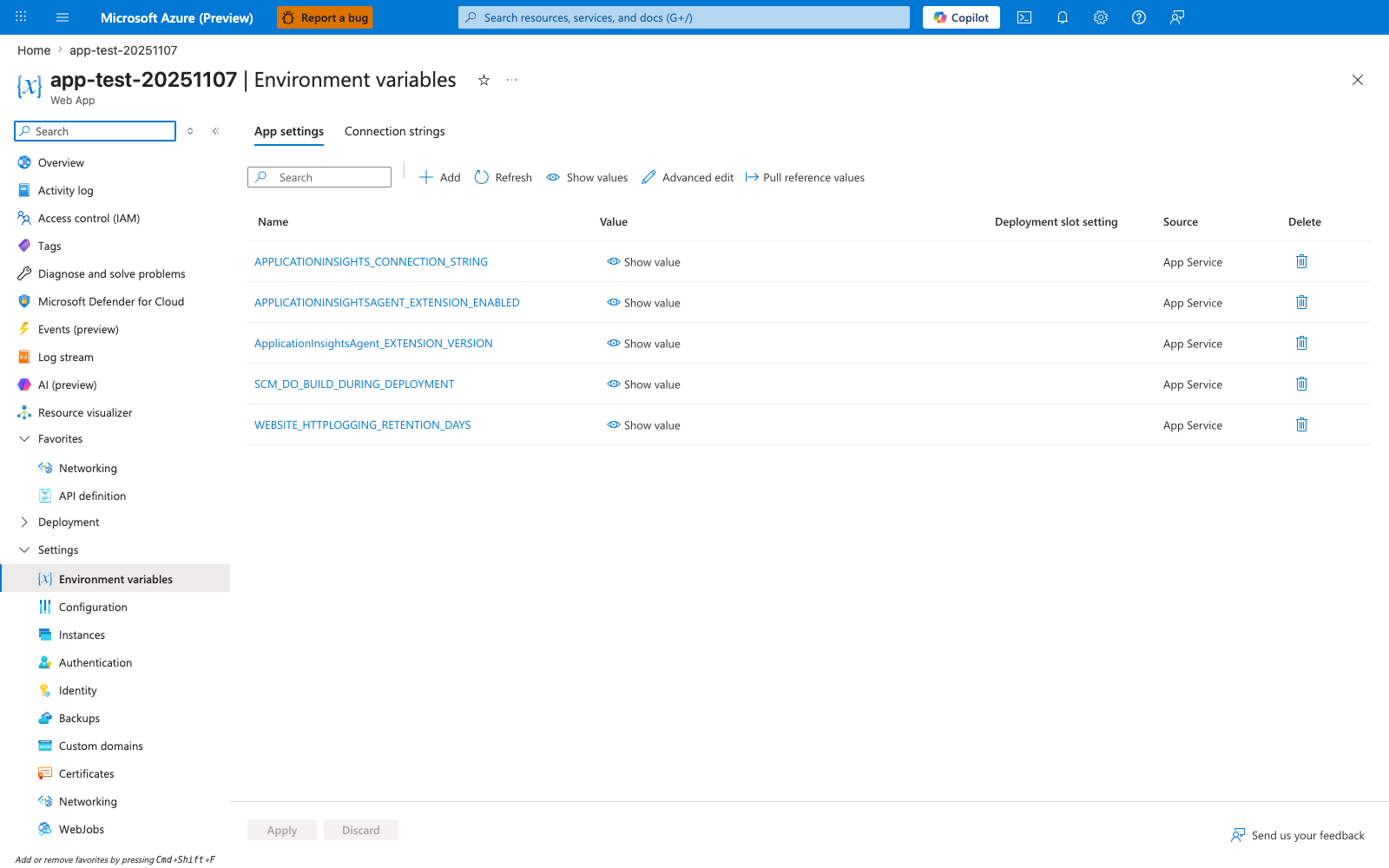
The Environment variables blade with the App settings tab selected is the Portal surface where the recipe's companion path settings appear if you add ASSETS_PATH and DATA_PATH as shown earlier on this page. Those rows would sit in the same Name/Value table shown here, and the visible Show value and Refresh actions are the controls you use to confirm the CLI-written app settings landed. Use this blade for the app-setting layer of the recipe; use az webapp config storage-account list for the actual BYOS mount inventory.