Azure SQL with Managed Identity
Connect Flask to Azure SQL Database using pyodbc and Microsoft Entra authentication via Managed Identity.
Architecture
flowchart TD
    Client[Client] --> App[App Service]
    App --> Sql[(Azure SQL Database)]
    App -.-> MI[Managed Identity]
    MI -.-> Entra[Microsoft Entra ID]
Solid arrows show runtime data flow. Dashed arrows show identity and authentication.
Prerequisites
- App Service with system-assigned managed identity enabled
- Azure SQL server and database
- Python dependency:
pyodbc - Network access from App Service to Azure SQL (public firewall or private endpoint)
Step-by-Step Guide
Step 1: Grant database access to the app identity
Assign a Microsoft Entra admin to SQL Server, then create a contained user for your app identity.
-- Run in the target database as Entra admin
CREATE USER [<app-managed-identity-name>] FROM EXTERNAL PROVIDER;
ALTER ROLE db_datareader ADD MEMBER [<app-managed-identity-name>];
ALTER ROLE db_datawriter ADD MEMBER [<app-managed-identity-name>];
Step 2: Configure app settings and connect from Flask
az webapp config appsettings set \
  --resource-group "$RG" \
  --name "$APP_NAME" \
  --settings \
    SQL_SERVER="<server-name>.database.windows.net" \
    SQL_DATABASE="<database-name>" \
    SQL_DRIVER="ODBC Driver 18 for SQL Server"
import os
import pyodbc
from flask import Flask, jsonify
from azure.identity import DefaultAzureCredential

app = Flask(__name__)


def get_sql_connection():
    server = os.environ["SQL_SERVER"]
    database = os.environ["SQL_DATABASE"]
    driver = os.environ.get("SQL_DRIVER", "ODBC Driver 18 for SQL Server")

    credential = DefaultAzureCredential()
    token = credential.get_token("https://database.windows.net/.default").token
    token_bytes = token.encode("utf-16-le")

    # SQL_COPT_SS_ACCESS_TOKEN = 1256
    attrs_before = {1256: token_bytes}

    conn_str = (
        f"Driver={{{driver}}};"
        f"Server=tcp:{server},1433;"
        f"Database={database};"
        "Encrypt=yes;TrustServerCertificate=no;"
    )

    return pyodbc.connect(conn_str, attrs_before=attrs_before, autocommit=False)


@app.get("/api/sql/ping")
def sql_ping():
    with get_sql_connection() as conn:
        with conn.cursor() as cursor:
            cursor.execute("SELECT TOP 1 name FROM sys.tables ORDER BY name")
            row = cursor.fetchone()
    return jsonify({"status": "ok", "sample_table": row[0] if row else None})
Complete Example
requirements.txt:
startup command (App Service):
Troubleshooting
Login failed for user '<token-identified principal>':- Ensure
CREATE USER ... FROM EXTERNAL PROVIDERran in the correct database. - Confirm role membership (db_datareader,db_datawriter, or custom role).-ODBC Driver 18 not found: - Use a custom container and install
msodbcsql18, or verify platform image support.- Connection timeout: - Validate SQL firewall rules, VNet integration, DNS, and private endpoint routing.
- Ensure
Advanced Topics
- Use retry logic (
tenacity) for transient errors (error codes 40613, 40197, 40501). - Use short-lived per-request connections (or a bounded pool) to avoid stale tokens.
- For high throughput, evaluate SQLAlchemy with an access-token event hook.
Run It in the Portal
Portal view: Identity blade (managed identity enabled for Azure SQL access)
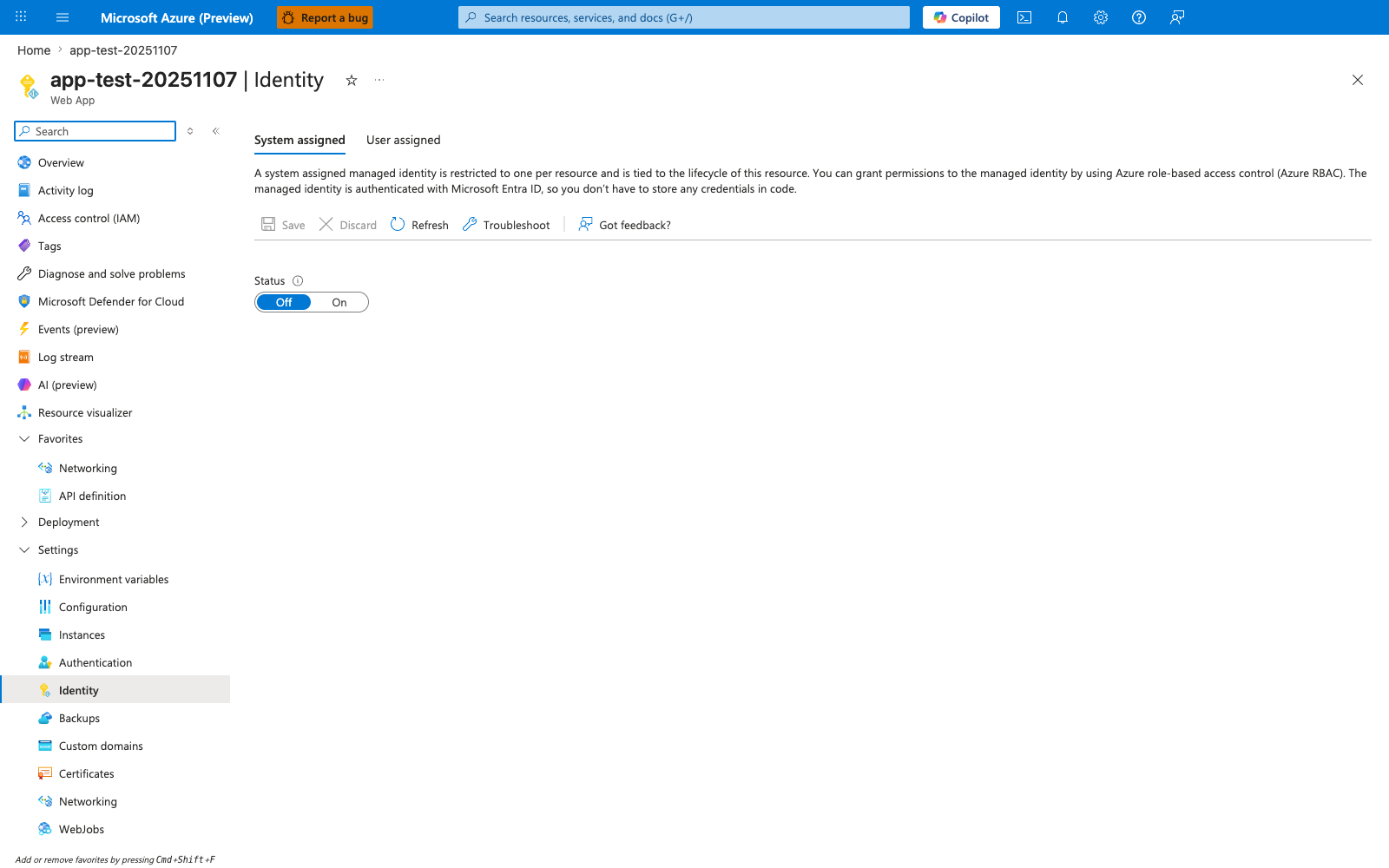
The Identity blade is the Portal entry point for the managed-identity flow this recipe uses to connect to Azure SQL without a stored password. With the System assigned tab selected and the Status toggle flipped from Off to On, App Service creates the Entra-backed identity that the SQL statements earlier in the recipe grant access to with CREATE USER ... FROM EXTERNAL PROVIDER and ALTER ROLE ... ADD MEMBER .... Use this blade as the first verification step for the recipe before testing the passwordless pyodbc connection from the Python app.