07. Custom Domains and SSL (OPTIONAL)
⏱️ Time: 30 minutes
🏗️ Prerequisites: A registered domain name, access to your DNS provider
By default, your app is accessible at *.azurewebsites.net. For production, you'll likely want a custom domain (e.g., www.contoso.com) with a valid SSL certificate.
Infrastructure Context
Service: App Service (Linux, Standard S1) | Network: VNet integrated | VNet: ✅
This tutorial assumes a production-ready App Service deployment with VNet integration, private endpoints for backend services, and managed identity for authentication.
flowchart TD
    INET[Internet] -->|HTTPS| WA["Web App\nApp Service S1\nLinux Node 20 LTS"]

    subgraph VNET["VNet 10.0.0.0/16"]
        subgraph INT_SUB["Integration Subnet 10.0.1.0/24\nDelegation: Microsoft.Web/serverFarms"]
            WA
        end
        subgraph PE_SUB["Private Endpoint Subnet 10.0.2.0/24"]
            PE_KV[PE: Key Vault]
            PE_SQL[PE: Azure SQL]
            PE_ST[PE: Storage]
        end
    end

    PE_KV --> KV[Key Vault]
    PE_SQL --> SQL[Azure SQL]
    PE_ST --> ST[Storage Account]

    subgraph DNS[Private DNS Zones]
        DNS_KV[privatelink.vaultcore.azure.net]
        DNS_SQL[privatelink.database.windows.net]
        DNS_ST[privatelink.blob.core.windows.net]
    end

    PE_KV -.-> DNS_KV
    PE_SQL -.-> DNS_SQL
    PE_ST -.-> DNS_ST

    WA -.->|System-Assigned MI| ENTRA[Microsoft Entra ID]
    WA --> AI[Application Insights]

    style WA fill:#0078d4,color:#fff
    style VNET fill:#E8F5E9,stroke:#4CAF50
style DNS fill:#E3F2FDNote: This tutorial is OPTIONAL. You can run production workloads on the default
.azurewebsites.netdomain indefinitely.
What you'll learn
- Mapping a custom domain to your App Service
- Configuring DNS records (CNAME and TXT)
- Securing your domain with App Service Managed Certificates (Free)
- Enforcing HTTPS-only traffic
How Custom Domains Work
flowchart TD
    Client[Client] --> DNS[Public DNS]
    DNS -->|"CNAME (subdomain)\nor A record (apex)"| App[App Service]
    App -."TXT asuid\nownership validation".-> DNS
Azure verifies domain ownership via a TXT record before allowing the hostname binding.
How HTTPS Binding Works
flowchart TD
    Client[Client] -->|HTTPS| Domain[Custom Domain]
    Domain --> App[App Service]
    Cert[Managed Certificate\nor imported cert] -->|SNI TLS binding| App
    HTTP[HTTP request] -."301 redirect".-> App
After binding a certificate, App Service terminates TLS and can redirect all HTTP traffic to HTTPS.
1. Prerequisites
- Domain Ownership: You must own the domain you want to use.
- DNS Access: You must be able to create CNAME and TXT records at your domain registrar (GoDaddy, Namecheap, Azure DNS, etc.).
- App Service Plan: Custom domains require a paid App Service plan (not the Free F1 tier). App Service Managed Certificates require Basic tier or higher.
2. Configure Custom Domain
Azure uses a TXT record to verify domain ownership before allowing the mapping.
Get Verification ID
az webapp show --name $APP_NAME --resource-group $RG --query customDomainVerificationId --output json | jq -r '.'
| Command/Code | Purpose |
|---|---|
az webapp show --name $APP_NAME --resource-group $RG --query customDomainVerificationId --output json | jq -r '.' | Retrieves the domain ownership verification ID required for the DNS TXT record |
Example output:
Add DNS Records
Go to your DNS provider and add:
- TXT Record:
- Host:
asuid.www(forwww.yourdomain.com) - Value: The Verification ID from the previous step.
- Host:
- CNAME Record:
- Host:
www - Value:
app-myapp-abc123.azurewebsites.net
- Host:
Map the Domain in Azure
az webapp config hostname add \
  --webapp-name $APP_NAME \
  --resource-group $RG \
  --hostname www.yourdomain.com \
  --output json
| Command/Code | Purpose |
|---|---|
az webapp config hostname add ... --hostname www.yourdomain.com --output json | Adds the custom hostname binding to the App Service app |
On success, the command returns JSON containing hostName, hostNameType: "Verified", and siteName. Requires DNS TXT and CNAME records to propagate before running.
| Command/Code | Purpose |
|---|---|
hostName | Shows the verified custom domain that was bound |
hostNameType | Shows the hostname verification state |
siteName | Shows which App Service app owns the binding |
3. SSL/TLS Configuration
Once the domain is mapped, secure it with a free Managed Certificate.
Create Managed Certificate
az webapp config ssl create \
  --name $APP_NAME \
  --resource-group $RG \
  --hostname www.yourdomain.com \
  --output json
Preview Command
az webapp config ssl create is currently in Preview. Not all hostname configurations are eligible for managed certificates. See App Service TLS overview for eligibility requirements. The Azure Portal provides an alternative path for managed certificate creation.
| Command/Code | Purpose |
|---|---|
az webapp config ssl create ... --hostname www.yourdomain.com --output json | Requests an App Service managed certificate for the custom domain |
Bind the Certificate
# Get the certificate thumbprint from the previous command output or:
THUMBPRINT=$(az webapp config ssl list --resource-group $RG --query "[?hostname=='www.yourdomain.com'].thumbprint | [0]" --output tsv)

az webapp config ssl bind \
  --name $APP_NAME \
  --resource-group $RG \
  --certificate-thumbprint $THUMBPRINT \
  --ssl-type SNI \
  --output json
| Command/Code | Purpose |
|---|---|
THUMBPRINT=$(az webapp config ssl list ... --query "[?hostname=='www.yourdomain.com'].thumbprint | [0]" --output tsv) | Looks up the certificate thumbprint for the custom domain as a scalar value |
az webapp config ssl bind ... --certificate-thumbprint $THUMBPRINT --ssl-type SNI --output json | Binds the certificate to the custom hostname using SNI-based TLS |
4. Security Hardening
Ensure all traffic uses HTTPS and modern TLS versions.
# Force HTTPS-only
az webapp update \
  --name $APP_NAME \
  --resource-group $RG \
  --https-only true \
  --output json

# Set minimum TLS version to 1.2
az webapp config set \
  --name $APP_NAME \
  --resource-group $RG \
  --min-tls-version 1.2 \
  --output json
| Command/Code | Purpose |
|---|---|
az webapp update ... --https-only true --output json | Redirects all HTTP traffic to HTTPS |
az webapp config set ... --min-tls-version 1.2 --output json | Requires clients to use TLS 1.2 or newer |
Verification
Test your new domain using curl:
# Verify it redirects to HTTPS
curl -I http://www.yourdomain.com

# Verify the SSL certificate is valid
curl -v https://www.yourdomain.com/health 2>&1 | grep "SSL certificate verify ok"
| Command/Code | Purpose |
|---|---|
curl -I http://www.yourdomain.com | Checks whether plain HTTP requests are redirected |
curl -v https://www.yourdomain.com/health 2>&1 | grep "SSL certificate verify ok" | Verifies the HTTPS certificate is trusted during the health request |
Troubleshooting
- DNS Propagation: Changes can take anywhere from a few minutes to 48 hours to propagate. Use
digornslookupto verify your records are live. - Verification Failed: Ensure the TXT record host is exactly
asuid.<subdomain>. - Managed Certificate Limitations: Managed certificates do not support wildcards (e.g.,
*.yourdomain.com). For wildcards, you must upload a custom PFX certificate.
Next Steps
Congratulations! You've completed the core operations path. Explore the Recipes section for advanced scenarios like Managed Identity and Key Vault integration.
Advanced Options
Coming Soon
- Wildcard SSL certificates
- Azure Front Door for global delivery
Run It in the Portal
Portal view: Custom domains blade (post-binding verification)
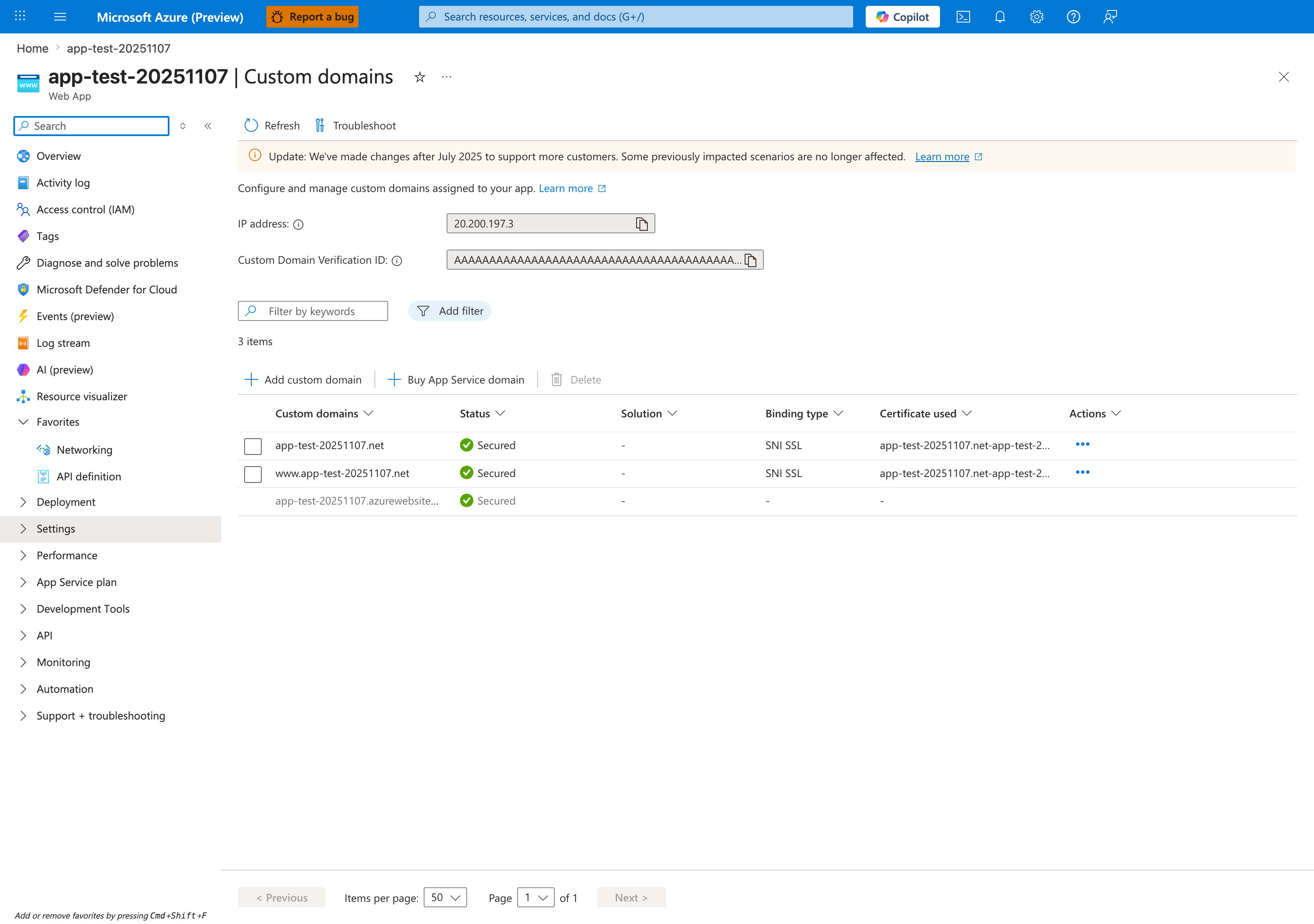
The Custom domains blade is the Portal verification surface for the az webapp config hostname add and az webapp config ssl bind steps in this Node.js tutorial. After DNS validation and certificate binding, the custom-hostname rows should show Status: Secured, Binding type: SNI SSL, and a populated Certificate used value, which is the end state visible for app-test-20251107.net and www.app-test-20251107.net in this screenshot. The IP address field at the top is the value you compare against the apex-domain A record during setup, and Add custom domain is the visible Portal entry point for the same hostname-binding flow. Use this blade after the CLI steps to confirm that the hostname rows, binding type, and certificate columns all reflect the expected custom-domain state for the Express app's hostnames.