01. Local Run
Time estimate: 10 minutes
Run the application locally with App Service-safe defaults before deploying to Azure.
Infrastructure Context
Service: App Service (Linux, Standard S1) | Network: VNet integrated | VNet: ✅
This tutorial assumes a production-ready App Service deployment with VNet integration, private endpoints for backend services, and managed identity for authentication.
flowchart TD
    INET[Internet] -->|HTTPS| WA["Web App\nApp Service S1\nLinux Node 20 LTS"]

    subgraph VNET["VNet 10.0.0.0/16"]
        subgraph INT_SUB["Integration Subnet 10.0.1.0/24\nDelegation: Microsoft.Web/serverFarms"]
            WA
        end
        subgraph PE_SUB["Private Endpoint Subnet 10.0.2.0/24"]
            PE_KV[PE: Key Vault]
            PE_SQL[PE: Azure SQL]
            PE_ST[PE: Storage]
        end
    end

    PE_KV --> KV[Key Vault]
    PE_SQL --> SQL[Azure SQL]
    PE_ST --> ST[Storage Account]

    subgraph DNS[Private DNS Zones]
        DNS_KV[privatelink.vaultcore.azure.net]
        DNS_SQL[privatelink.database.windows.net]
        DNS_ST[privatelink.blob.core.windows.net]
    end

    PE_KV -.-> DNS_KV
    PE_SQL -.-> DNS_SQL
    PE_ST -.-> DNS_ST

    WA -.->|System-Assigned MI| ENTRA[Microsoft Entra ID]
    WA --> AI[Application Insights]

    style WA fill:#0078d4,color:#fff
    style VNET fill:#E8F5E9,stroke:#4CAF50
style DNS fill:#E3F2FDOverview
flowchart TD
    A[Clone Repo] --> B[npm install]
    B --> C[npm start]
    C --> D[localhost:3000]
    D --> E{Test Endpoints}
    E --> F[/health]
    E --> G[/info]
E --> H[/api/*]Prerequisites
- Node.js v20+ (LTS recommended)
- npm or yarn
- Basic terminal familiarity
What you'll learn
- How to run an Express app locally
- Why the
PORTenvironment variable is critical for Azure - How to test production-like behavior on your machine
Quick Start
| Command/Code | Purpose |
|---|---|
cd apps/nodejs | Moves into the sample Node.js application directory |
npm install | Installs the dependencies declared in package.json |
npm start | Starts the application by running the package start script |
Visit http://localhost:3000
App Service-Safe Defaults
This application follows App Service conventions out of the box:
Why App Service-Safe?
Following these conventions ensures your app works identically in local development and Azure deployment with zero configuration changes.
1. Port Binding
CRITICAL: The app binds to process.env.PORT, which App Service sets automatically. While many apps default to 3000 locally, Azure App Service uses a random port and routes traffic to it via a reverse proxy (IIS/Nginx).
// apps/nodejs/src/server.js
const PORT = process.env.PORT || 3000;
app.listen(PORT, () => {
  console.log(`Server running on port ${PORT}`);
});
| Command/Code | Purpose |
|---|---|
const PORT = process.env.PORT || 3000; | Uses the App Service-provided port in Azure and falls back to 3000 locally |
app.listen(PORT, ...) | Starts the Express server on the selected port |
console.log(`Server running on port ${PORT}`); | Writes a startup message so you can confirm the active port |
Common Mistake
Never hardcode ports like 3000 or bind to localhost (127.0.0.1) only. App Service expects the app to listen on 0.0.0.0:PORT.
For more details on how the runtime handles your code, see Node.js Runtime Concepts.
2. Environment Variables
Default configuration works without any environment variables:
| Variable | Local Default | App Service |
|---|---|---|
PORT | 3000 | Set by platform |
NODE_ENV | development | Set to production |
LOG_LEVEL | info | Configurable via App Settings |
3. Production Mode Testing
Test production mode locally:
| Command/Code | Purpose |
|---|---|
NODE_ENV=production npm start | Starts the app in production mode to test Azure-like behavior locally |
This enables: - JSON log format (instead of colored dev logs) - Production error messages (no stack traces in responses)
Verify Local Setup
Health Check
| Command/Code | Purpose |
|---|---|
curl http://localhost:3000/health | Calls the health endpoint to confirm the local app is responding |
Expected response:
| Command/Code | Purpose |
|---|---|
status | Shows the application reported itself as healthy |
timestamp | Records when the health response was generated |
App Info
| Command/Code | Purpose |
|---|---|
curl http://localhost:3000/info | Retrieves runtime metadata from the sample app |
Expected response:
{
  "name": "azure-app-service-practical-guide",
  "version": "1.0.0",
  "node": "v20.20.0",
  "environment": "development",
  "telemetryMode": "basic"
}
| Command/Code | Purpose |
|---|---|
name | Identifies the application package |
version | Shows the deployed app version |
node | Shows the active Node.js runtime version |
environment | Confirms whether the app is running in development or production mode |
telemetryMode | Shows which logging/telemetry configuration is active |
Production vs Development
When running on Azure, environment will show "production" instead of "development".
Generate Sample Logs
| Command/Code | Purpose |
|---|---|
curl "http://localhost:3000/api/requests/log-levels?userId=local-user" | Triggers the demo endpoint so the app emits sample logs with a test user ID |
Example output:
{"timestamp":"2026-05-01T08:30:53.856Z","level":"info","message":"Info level log - normal operational message","service":"azure-appservice-reference","environment":"development","userId":"local-user","action":"log-levels-demo"}
{"timestamp":"2026-05-01T08:30:53.857Z","level":"warn","message":"Warn level log - potential issue detected","service":"azure-appservice-reference","environment":"development","userId":"local-user","warning":"Demo warning: userId parameter not provided","recommendation":"Include userId query parameter for tracking"}
{"timestamp":"2026-05-01T08:30:53.857Z","level":"error","message":"Error level log - application error","service":"azure-appservice-reference","environment":"development","userId":"local-user","error":"Demo error: simulating error condition","errorCode":"DEMO_ERROR","severity":"high"}
| Command/Code | Purpose |
|---|---|
level | Indicates the severity of each generated log entry |
message | Describes the event that was logged |
userId | Carries the request context into each log record |
timestamp | Shows when each log entry was emitted |
Check terminal output for structured logs at all severity levels.
Troubleshooting
Port Already in Use
| Command/Code | Purpose |
|---|---|
lsof -i :3000 | Finds the process currently using port 3000 |
kill -9 <PID> | Force-stops the process that is blocking the local server port |
Module Not Found
| Command/Code | Purpose |
|---|---|
cd apps/nodejs | Moves back into the sample application directory |
rm -rf node_modules package-lock.json | Removes installed packages and the lock file to reset the local dependency state |
npm install | Reinstalls dependencies from scratch |
Next Steps
Once local development works, proceed to: - 02. First Deploy - Deploy Azure resources
Advanced Options
Coming Soon
- Containerizing for local development
- Mocking Azure dependencies locally
Run It in the Portal
Portal view: App Service plan (Linux) - the deployment target this tutorial emulates locally
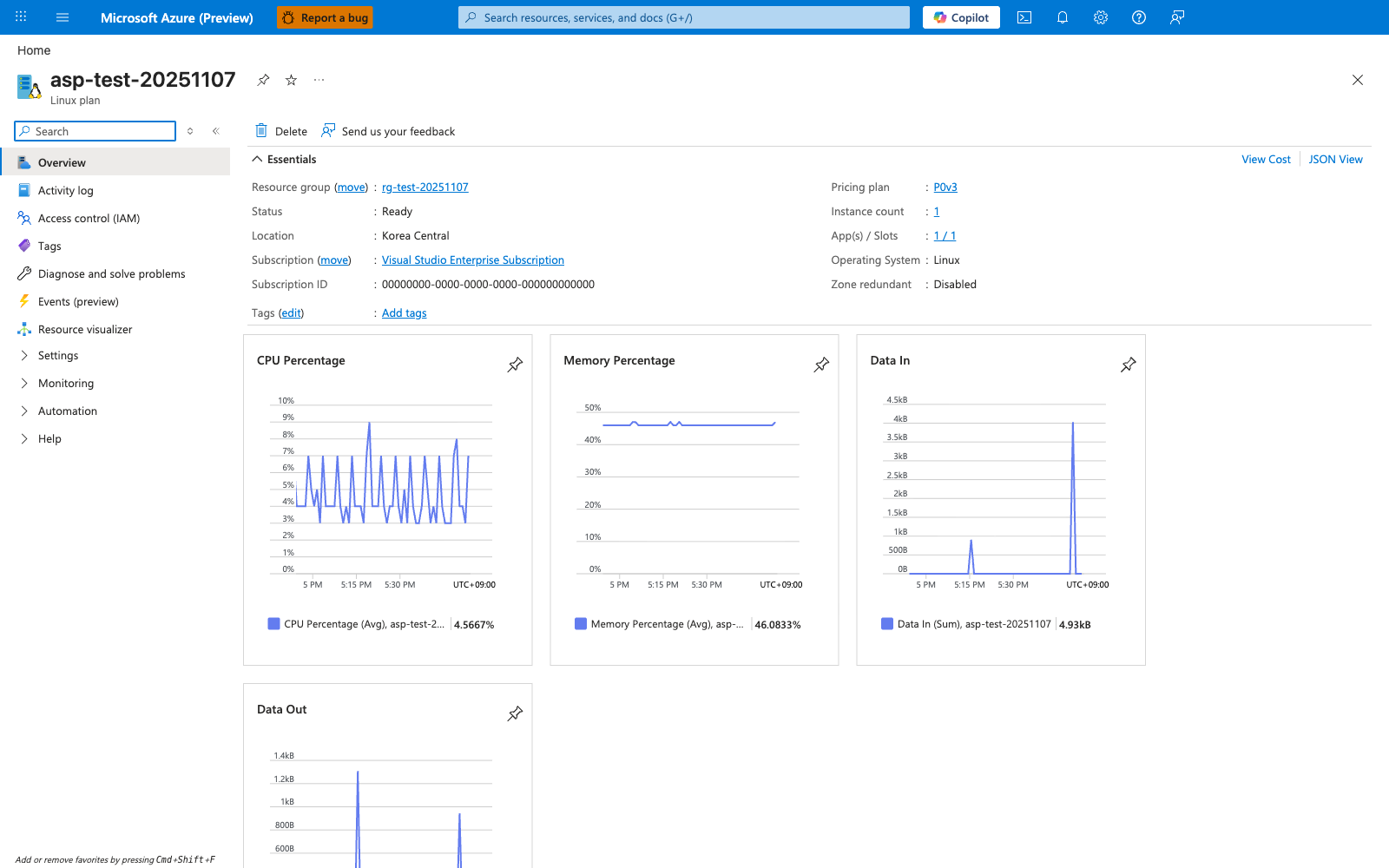
Your local Express setup in this tutorial is meant to mirror the runtime shape of a Linux App Service app, not every plan-level limit shown on this blade. The visible Operating system: Linux confirms the worker OS, and the hosted-app list on the right shows that an App Service plan is the shared deployment target used by later tutorials. The CPU Percentage and Memory Percentage charts are the Portal-side signals you compare against when local npm start tests suggest the app is using too much CPU or memory under load. Use this blade to verify that the target app runs on a Linux App Service plan before moving from local validation to Azure deployment.