Next.js on App Service
This recipe covers deploying a Next.js application to Azure App Service using the standalone build feature and SSR configuration.
flowchart TD
    A[Configure output: standalone] --> B[npm run build]
    B --> C[Generate .next/standalone]
    C --> D[Build runtime container]
    D --> E[Deploy to App Service]
E --> F[Validate SSR and static assets]Overview
Next.js is a popular React framework that supports both client-side and server-side rendering (SSR). For optimal performance and resource usage on Azure App Service, the standalone build mode is highly recommended.
Prerequisites
- Next.js 12+ (standalone mode requires Next.js 12 or newer)
- Azure App Service (Linux) with Node.js 18+
Implementation
1. Standalone Build Configuration
Enable standalone mode in your next.config.js or next.config.mjs file:
/** @type {import('next').NextConfig} */
const nextConfig = {
  output: 'standalone',
  // Optional: Add other configurations like images or localized routing
};

module.exports = nextConfig;
2. Standalone Build Script
When you run npm run build, Next.js will generate a .next/standalone folder that contains only the files needed for production deployment, significantly reducing your bundle size.
3. Dockerfile for Next.js Standalone
Using a Dockerfile is the most reliable way to deploy Next.js standalone.
# Stage 1: Build
FROM node:20-alpine AS builder
WORKDIR /app
COPY package*.json ./
RUN npm install
COPY . .
RUN npm run build

# Stage 2: Runtime
FROM node:20-alpine AS runner
WORKDIR /app
ENV NODE_ENV production

# Don't run as root
RUN addgroup --system --gid 1001 nodejs \
    && adduser --system --uid 1001 nextjs

# Copy standalone build artifacts
COPY --from=builder /app/public ./public
COPY --from=builder --chown=nextjs:nodejs /app/.next/standalone ./
COPY --from=builder --chown=nextjs:nodejs /app/.next/static ./.next/static

USER nextjs

EXPOSE 3000
ENV PORT 3000

# Next.js standalone entrypoint
CMD ["node", "server.js"]
4. Static File Handling and Environment Variables
- Static files: Next.js automatically serves static files from the
publicfolder and.next/static. - Environment variables: Public variables (
NEXT_PUBLIC_*) are baked into the build. Private variables (e.g.,DATABASE_URL) should be set as App Settings in the Azure portal and accessed in yourgetServerSidePropsorgetStaticPropsfunctions.
Verification
- Deploy the container and browse to the URL.
- Check the Web App logs to see the Next.js server starting:
Troubleshooting
- 404 for static assets: Ensure you copied both the
publicand.next/staticfolders into the runtime image correctly. - Port issues: Azure App Service redirects traffic to port 80/443. Ensure your
server.jslistens on the port specified by thePORTenvironment variable (default is 3000). - SSR latency: Use VNET integration to connect your App Service to downstream resources (e.g., Azure SQL, Redis) for lower latency in SSR data fetching.
Advanced Topics
Coming Soon
Run It in the Portal
Portal view: Environment variables blade (Next.js private runtime variables surface in App settings)
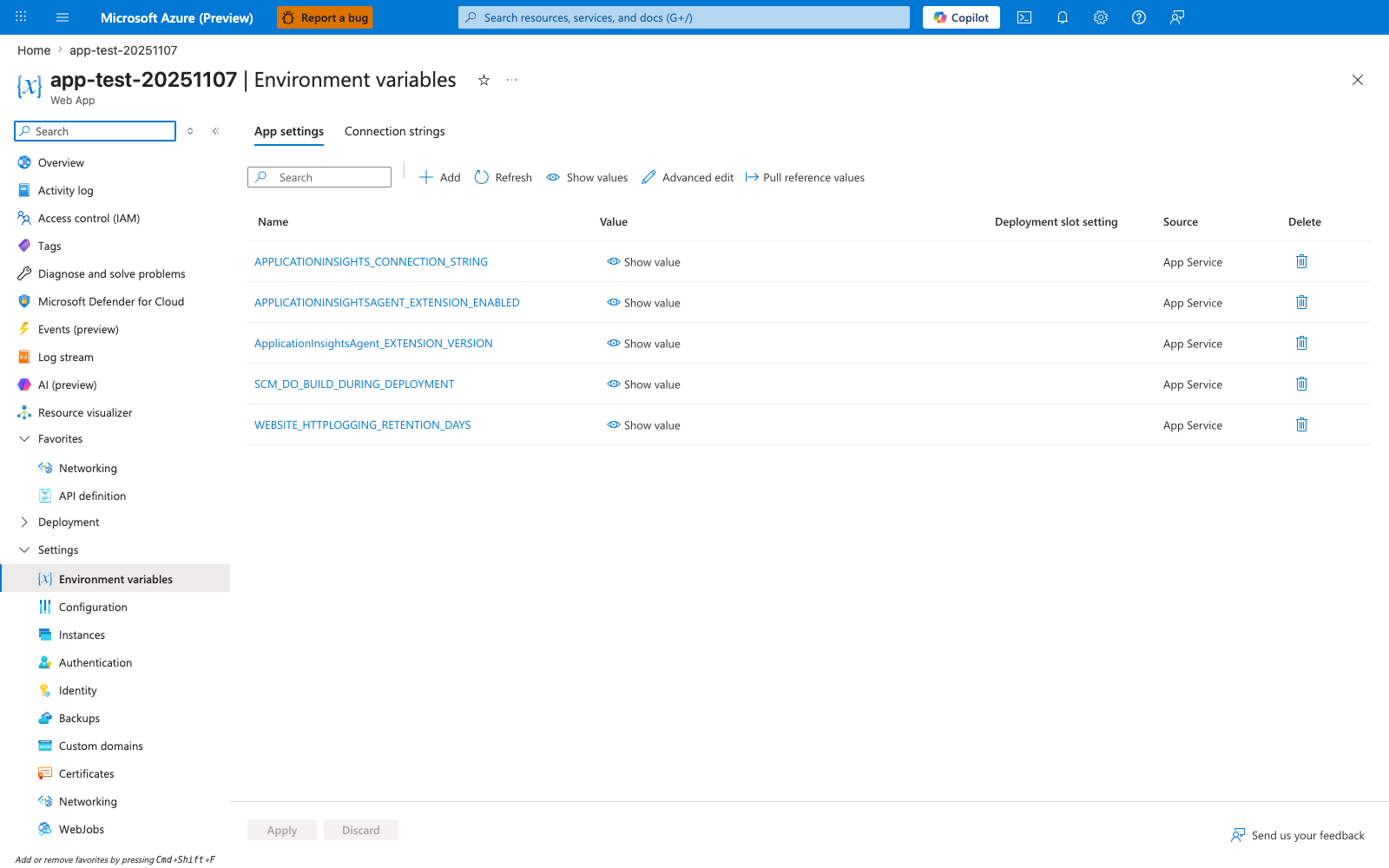
The Environment variables blade with the App settings tab selected is the Portal surface where the Next.js private runtime variables this recipe describes — for example DATABASE_URL — appear after you add them to the app configuration. New rows would sit in the same Name/Value/Deployment slot setting/Source table shown here alongside the visible App Service-managed entries. The visible Show value, Refresh, and Advanced edit actions are the controls you use to confirm those runtime settings landed for the standalone server.js process. Build-time NEXT_PUBLIC_* variables called out earlier on this page are baked into the bundle and do not appear in this runtime table.