Native Dependencies
This recipe explains how to manage native Node.js modules like sharp and bcrypt on Azure App Service using multi-stage Docker builds.
flowchart TD
    A[Source with native modules] --> B[Builder image with compilers]
    B --> C[npm install + build]
    C --> D[Runtime image with minimal libs]
    D --> E[Deploy to App Service]
E --> F[Verify module load succeeds]Overview
Native modules contain C/C++ code that must be compiled for the target operating system and architecture. When deploying to Azure App Service (Linux), compiling these locally (e.g., on Windows or macOS) can result in runtime errors like ELF header invalid.
Prerequisites
- Azure App Service (Linux)
- Docker Desktop (for building custom containers)
Implementation
1. Build-time vs Runtime Dependencies
Some modules (like sharp) require system-level libraries during compilation and execution.
- sharp: Requires
libvipsand related development headers. - bcrypt: Requires
python3,make, andg++for compilation.
2. Multi-stage Docker Build for Native Modules
A multi-stage build allows you to use a heavy build image with all the compilation tools and copy only the final artifacts to a slim runtime image.
# Stage 1: Build
FROM node:20-bookworm AS builder
WORKDIR /app

# Install compilation tools
RUN apt-get update && apt-get install -y \
    build-essential \
    python3 \
    libvips-dev \
    && rm -rf /var/lib/apt/lists/*

COPY package*.json ./
RUN npm install --include=dev

COPY . .
RUN npm run build

# Stage 2: Runtime
FROM node:20-bookworm-slim
WORKDIR /app

# Install runtime-only library dependencies (e.g., for sharp)
RUN apt-get update && apt-get install -y \
    libvips \
    && rm -rf /var/lib/apt/lists/*

# Copy only the production node_modules and built assets
COPY --from=builder /app/node_modules ./node_modules
COPY --from=builder /app/dist ./dist

EXPOSE 8080
CMD ["node", "dist/index.js"]
3. Alternative for Zip Deployments
If you are not using containers and instead using Zip Deploy, ensure you use Remote Build so the compilation happens on the Linux App Service server. Set SCM_DO_BUILD_DURING_DEPLOYMENT=true in App Settings, then deploy:
az webapp deploy --resource-group $RG --name $APP_NAME --src-path <zip-file> --type zip --output json
Verification
After deployment, test functionality by triggering an image resize with sharp or a password hash with bcrypt.
# Log into the App Service SSH terminal and check for errors
# https://${APP_NAME}.scm.azurewebsites.net/webssh/host
node -e "require('sharp')"
node -e "require('bcrypt')"
Troubleshooting
- Error: ELF header invalid: This usually means the module was compiled on a different OS (e.g., Windows) and copied to Linux. Re-run
npm installon the target platform or use Docker. - Missing shared libraries (.so files): If
sharpfails withlibvips.so.42 not found, ensure you installed the runtime dependencies (libvips) in your Dockerfile. - Compilation Failures: Ensure the build stage has
build-essential,python3, andmake.
Advanced Topics
Coming Soon
Run It in the Portal
Portal view: Log stream blade (verifying native dependencies loaded at runtime)
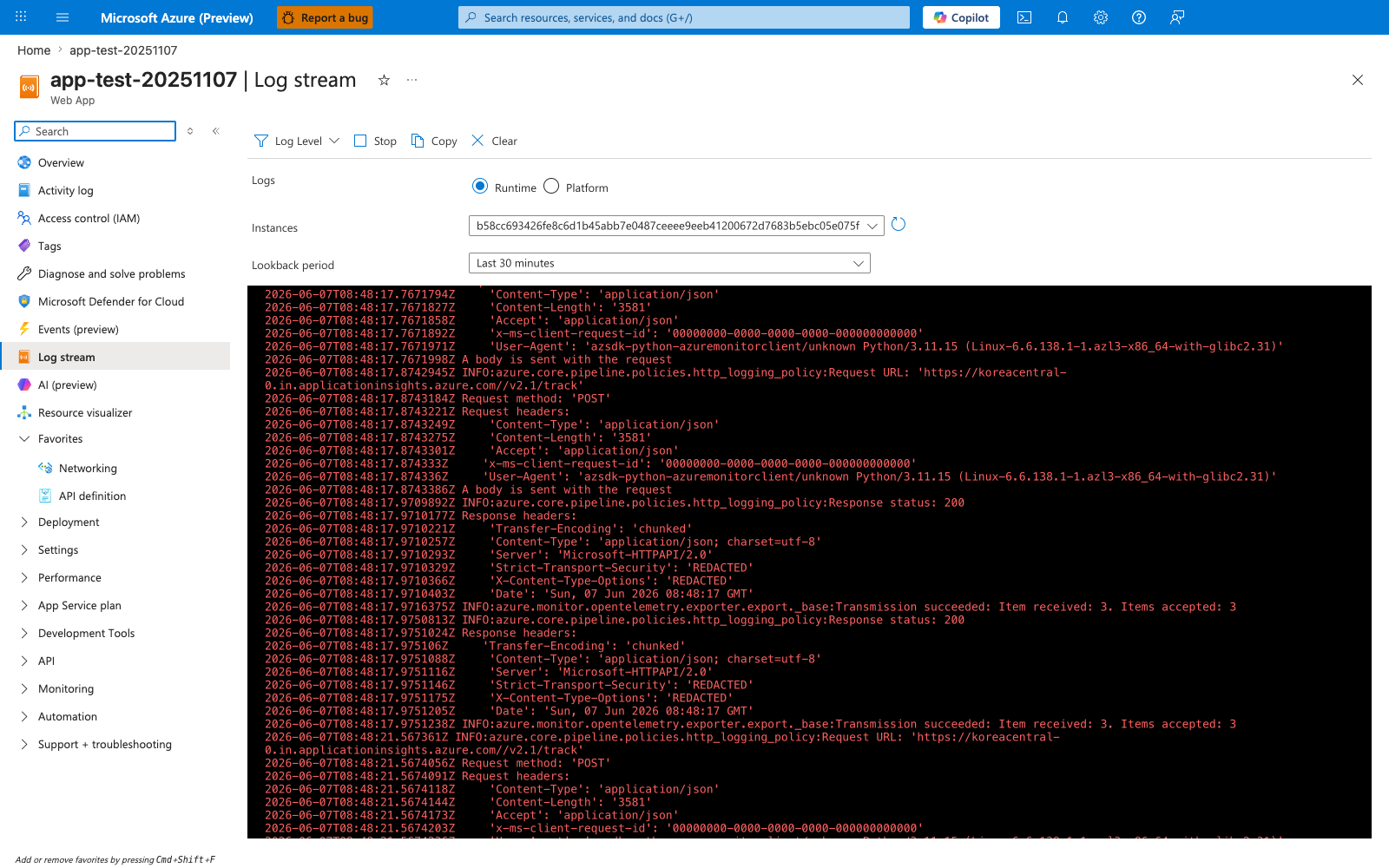
The Log stream blade is the Portal surface for confirming that native Node.js modules installed by this recipe — sharp, bcrypt, and their libvips-related native libraries — loaded correctly during App Service startup. With Runtime selected and lookback set to Last 30 minutes, the live console here shows the same output you would otherwise tail with az webapp log tail. The example feed visible here was captured from a Python deployment, so the Transmission succeeded: Item received: 3. Items accepted: 3 line is OpenTelemetry Python exporter output; for the Node.js recipe, the equivalent signal in this same blade is the absence of ELF header invalid or libvips.so.42 not found messages that the Troubleshooting section on this page calls out. Use this blade after the recipe's multi-stage Docker build to verify no native-library failure is logged during the first request after restart.