Key Vault References
Key Vault references allow App Service to access secrets directly from Azure Key Vault through environment variables. This eliminates the need to store sensitive data in application settings and simplifies secret rotation.
Overview
Azure App Service can automatically resolve secrets from Key Vault and inject them into your application's environment. This provides a central location for secret management and improves security by reducing the exposure of secrets in configuration files or the Azure Portal.
Architecture
flowchart TD
    Platform[App Service platform] --> Resolve[Resolve Key Vault reference]
    Resolve --> Kv[Azure Key Vault]
    Kv --> Setting[Secret injected as app setting]
    Setting --> App[App Service app]
    Platform -.-> MI[Managed Identity]
    MI -.-> Entra[Microsoft Entra ID]
How to read this diagram: Solid arrows show runtime data flow. Dashed arrows show identity and authentication.
Prerequisites
- Managed Identity: The app must have a system-assigned or user-assigned managed identity.
- Azure Key Vault: A vault containing the secrets you want to access.
- Permissions: The app's identity must have the Key Vault Secrets User RBAC role or an access policy with Get secret permissions on the vault.
Setup Steps
1. Enable Managed Identity
Enable a system-assigned identity for your App Service:
2. Grant Access to Key Vault
Assign the Key Vault Secrets User role to your app's service principal:
# Get the principalId from the identity assignment command above
PRINCIPAL_ID=$(az webapp identity show --name <app-name> --resource-group <resource-group-name> --query principalId --output tsv)

# Assign the role
az role assignment create \
  --assignee $PRINCIPAL_ID \
  --role "Key Vault Secrets User" \
  --scope /subscriptions/<subscription-id>/resourceGroups/<resource-group-name>/providers/Microsoft.KeyVault/vaults/<vault-name>
3. Add Secrets to Key Vault
If you don't have secrets yet, add one:
az keyvault secret set \
  --vault-name <vault-name> \
  --name "MySecret" \
  --value "super-secret-value"
4. Configure App Setting
Add a new application setting using the Key Vault reference syntax:
az webapp config appsettings set \
  --name <app-name> \
  --resource-group <resource-group-name> \
  --settings DB_PASSWORD="@Microsoft.KeyVault(SecretUri=https://<vault-name>.vault.azure.net/secrets/MySecret/)"
Key Vault Reference Formats
You can use two different formats for the reference:
| Format | Example |
|---|---|
| SecretUri | @Microsoft.KeyVault(SecretUri=https://myvault.vault.azure.net/secrets/mysecret/) |
| VaultName & SecretName | @Microsoft.KeyVault(VaultName=myvault;SecretName=mysecret) |
For specific versions, append the version ID to the SecretUri or add SecretVersion=id to the name-based format.
Verification
To check if the reference resolved correctly:
- Go to the Configuration blade in the Azure Portal.
- Look for a green checkmark next to the setting.
- If it shows a red "X" or "Unable to resolve", check the identity permissions and the SecretUri syntax.
Troubleshooting
- 403 Forbidden: Ensure the identity has the correct RBAC role or access policy. RBAC changes can take up to 10 minutes to propagate.
- Identity not found: Verify that the app has managed identity enabled and that it's the same identity you granted access to in Key Vault.
- Syntax Error: Double-check the
@Microsoft.KeyVault(...)syntax. Any missing parenthesis or semicolon will cause resolution to fail.
Node.js Usage
Once configured, the secret is available as a standard environment variable. You don't need any special SDKs to read the secret value:
const databasePassword = process.env.DB_PASSWORD;

if (!databasePassword) {
  console.error('DB_PASSWORD environment variable is not set');
}
Advanced Topics
- User-Assigned Identity: If using a user-assigned identity, you must specify the identity's client ID in the reference or set the
keyVaultReferenceIdentityproperty on the app. - Secret Rotation: References without a specific version automatically track the latest version. It may take up to 24 hours for the app to pick up the new version.
Run It in the Portal
Portal view: Environment variables blade (Key Vault references surface in App settings)
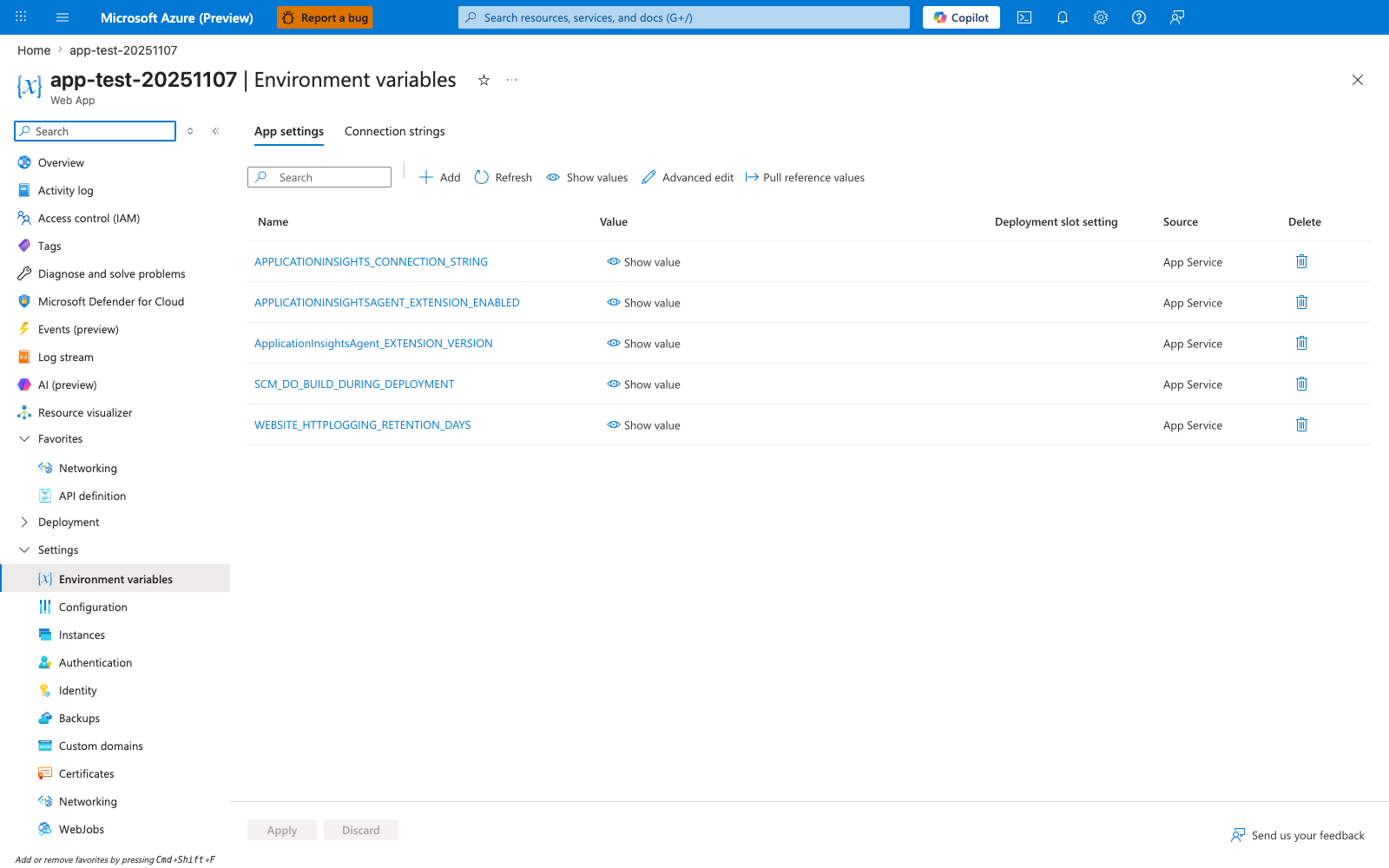
The Environment variables blade with the App settings tab selected is the Portal surface where Key Vault references created by this recipe appear. After running az webapp config appsettings set with values of the form @Microsoft.KeyVault(...), new rows show up alongside the platform-managed entries visible here in the same Name/Value/Deployment slot setting/Source table. The Pull reference values and Refresh actions in the toolbar are the Portal-side controls for re-evaluating reference state, which is useful after granting the app's managed identity access to a vault. Use Show value on a reference row to confirm the resolved secret is returned instead of the literal reference syntax.