Cosmos DB Integration
This recipe shows how to connect a Node.js application to Azure Cosmos DB for NoSQL using the @azure/cosmos SDK and passwordless Managed Identity.
Overview
Azure Cosmos DB is a globally distributed, multi-model database service. Integrating it with Managed Identity on App Service removes the need to store secondary master keys in your application's environment variables.
Architecture
flowchart TD
    Client[Client] --> App[App Service]
    App --> Cosmos[Azure Cosmos DB]
    App -.-> MI[Managed Identity]
    MI -.-> Entra[Microsoft Entra ID]
How to read this diagram: Solid arrows show runtime data flow. Dashed arrows show identity and authentication.
Prerequisites
- Azure Cosmos DB Account (NoSQL API)
- Azure App Service with Node.js
- Managed Identity (System or User-assigned) enabled on the App Service
- RBAC role assignment: The Managed Identity must be assigned the
Cosmos DB Built-in Data Contributorrole on the Cosmos DB account.
Implementation
1. Install Dependencies
2. Client Initialization with Managed Identity
const { CosmosClient } = require('@azure/cosmos');
const { DefaultAzureCredential } = require('@azure/identity');

const endpoint = process.env.COSMOS_ENDPOINT; // e.g., https://your-db.documents.azure.com:443/
const databaseId = process.env.COSMOS_DATABASE;
const containerId = process.env.COSMOS_CONTAINER;

const client = new CosmosClient({
  endpoint,
  aadCredentials: new DefaultAzureCredential()
});

async function getItems() {
  const container = client.database(databaseId).container(containerId);

  // Example query
  const { resources: items } = await container.items
    .query("SELECT * FROM c WHERE c.active = true")
    .fetchAll();

  return items;
}

module.exports = { getItems };
3. Partition Key Strategies
Choosing the right partition key is critical for performance and scalability: - High cardinality: Use a property with many unique values (e.g., userId, deviceId). - Even distribution: Avoid "hot partitions" by ensuring data is spread evenly across partition key values. - Cross-partition queries: Design your schema to avoid these where possible, as they are more expensive.
4. Connection Best Practices
- Singleton Client: Create one
CosmosClientinstance and reuse it across your application. - Direct Mode: The Node.js SDK uses HTTP/Gateway mode by default. For better performance in some scenarios, ensure your App Service and Cosmos DB are in the same region.
- Error Handling: Implement retry logic for transient errors (handled automatically by the SDK for many cases).
Verification
Deploy to App Service and verify access by calling your database integration:
# Set environment variables in App Service
az webapp config appsettings set --name $APP_NAME --resource-group $RG --settings COSMOS_ENDPOINT="https://your-db.documents.azure.com:443/" COSMOS_DATABASE="tasks" COSMOS_CONTAINER="items" --output json
Troubleshooting
- Forbidden (403): This often means the role assignment is missing or hasn't propagated. Check the Access Control (IAM) settings on the Cosmos DB account.
- Resource Not Found (404): Ensure the
databaseIdandcontainerIdexactly match what you created in the portal. - Slow Queries: Check if your queries are using the partition key. Use
container.items.readAll({ partitionKey: "your-key" })for optimized reads.
Advanced Topics
Coming Soon
Run It in the Portal
Portal view: Identity blade (system-assigned identity for Cosmos DB RBAC)
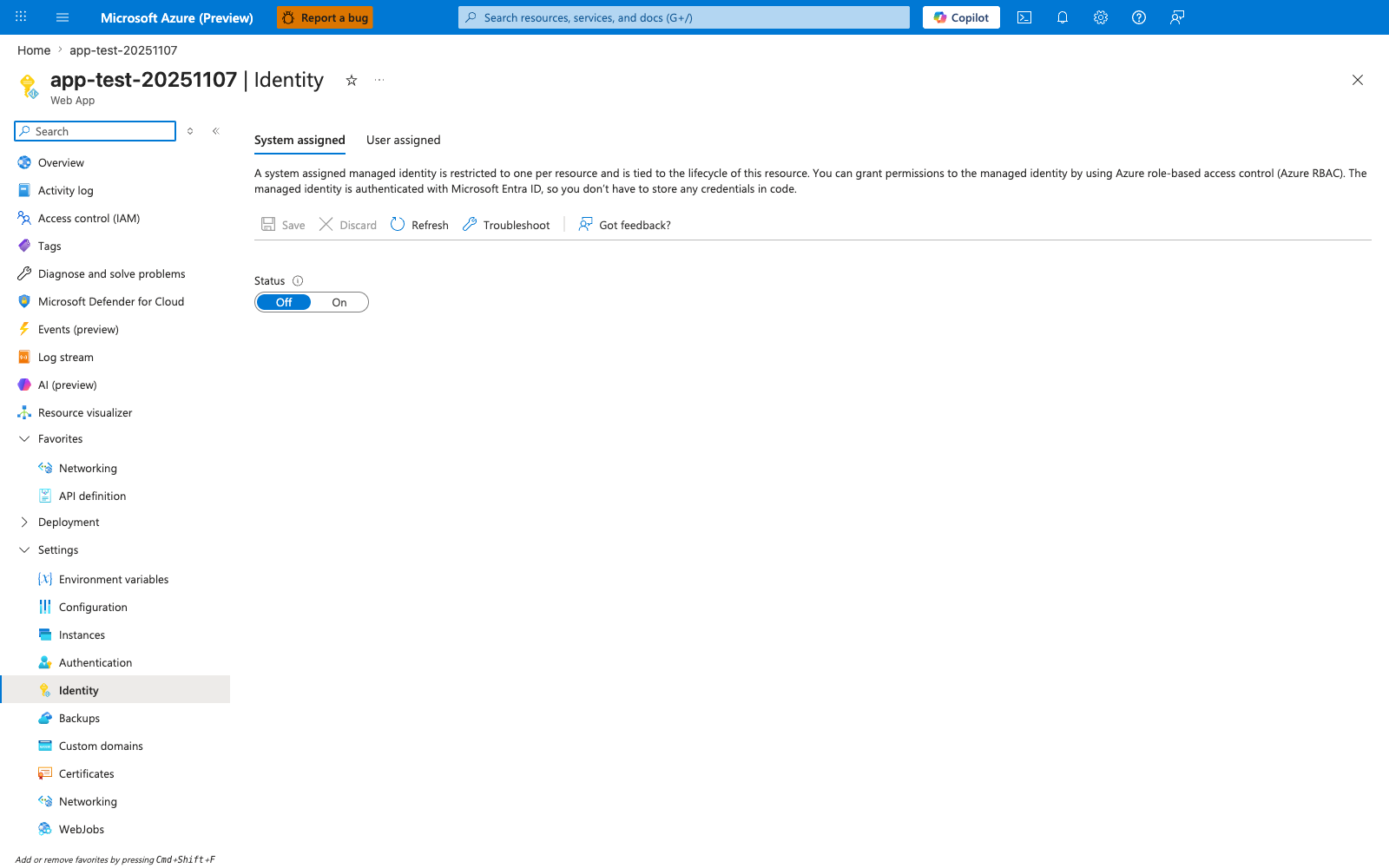
This Identity blade is the Portal starting point for the Cosmos DB recipe's passwordless connection pattern. With System assigned active and the Status toggle moved from Off to On, App Service generates an Entra ID principal that you then grant the Cosmos Built-in Data Contributor role to via az cosmosdb sql role assignment create. The descriptive header restates the lifecycle guarantee the recipe relies on: the identity is tied to the App Service resource, so it disappears when the app is deleted. Use this blade to confirm the identity is enabled before running the data-plane RBAC assignment used by the Node.js @azure/cosmos + DefaultAzureCredential client shown in the recipe.