Azure SQL Integration
This recipe shows how to connect a Node.js application running on Azure App Service to an Azure SQL Database using a passwordless Managed Identity approach.
Overview
Azure SQL integration typically relies on connection strings with embedded credentials. Using Managed Identity eliminates the need to manage secrets like passwords or client keys, improving security and reducing operational overhead.
Architecture
flowchart TD
    Client[Client] --> App[App Service]
    App --> Sql[Azure SQL Database]
    App -.-> MI[Managed Identity]
    MI -.-> Entra[Microsoft Entra ID]
How to read this diagram: Solid arrows show runtime data flow. Dashed arrows show identity and authentication.
Prerequisites
- Azure SQL Database
- Azure App Service with Node.js
- Managed Identity (System or User-assigned) enabled on the App Service
- The Managed Identity must be added as a user in the SQL Database with appropriate permissions (
db_datareader,db_datawriter)
Implementation
1. Install Dependencies
2. Connection Logic
The mssql package (which uses tedious internally) supports Azure AD authentication.
const sql = require('mssql');
const { DefaultAzureCredential } = require('@azure/identity');

const config = {
    server: process.env.SQL_SERVER, // e.g., 'app-myapp-abc123.database.windows.net'
  database: process.env.SQL_DATABASE,
  port: 1433,
  authentication: {
    type: 'azure-active-directory-msi-vm',
    options: {
      // For User-Assigned Identity, provide the client ID
      // clientId: process.env.AZURE_CLIENT_ID
    }
  },
  options: {
    encrypt: true,
    trustServerCertificate: false
  },
  pool: {
    max: 10,
    min: 0,
    idleTimeoutMillis: 30000
  }
};

let poolPromise;

function getPool() {
  if (!poolPromise) {
    poolPromise = sql.connect(config);
  }
  return poolPromise;
}

async function queryData() {
  try {
    const pool = await getPool();
    const result = await pool.request()
      .query('SELECT TOP 10 * FROM YourTable');
    return result.recordset;
  } catch (err) {
    console.error('SQL error', err);
    throw err;
  }
}

module.exports = { queryData };
3. Connection Pooling Best Practices
- Reuse the connection pool: Create a single pool and reuse it throughout your application's lifecycle. Don't call
sql.connect()on every request. - Set pool limits: Match
pool.maxto your application's concurrency needs and App Service plan limits. - Idle timeout: Use
idleTimeoutMillisto close unused connections and save resources.
Verification
Deploy to App Service and check the logs after triggering a database operation. You can also test locally by signing into the Azure CLI with an account that has SQL access:
az login
export SQL_SERVER="your-server.database.windows.net"
export SQL_DATABASE="your-db"
node your-app.js
Troubleshooting
- Login failed: Ensure the Managed Identity is created as a user in the SQL Database:
- Connection timeout: Check if "Allow Azure services and resources to access this server" is enabled in the Azure SQL firewall settings.
- Managed Identity Type: If using a User-Assigned identity, ensure
AZURE_CLIENT_IDis set in the App Service environment variables.
Advanced Topics
Coming Soon
Run It in the Portal
Portal view: Identity blade (managed identity enabled for Azure SQL access)
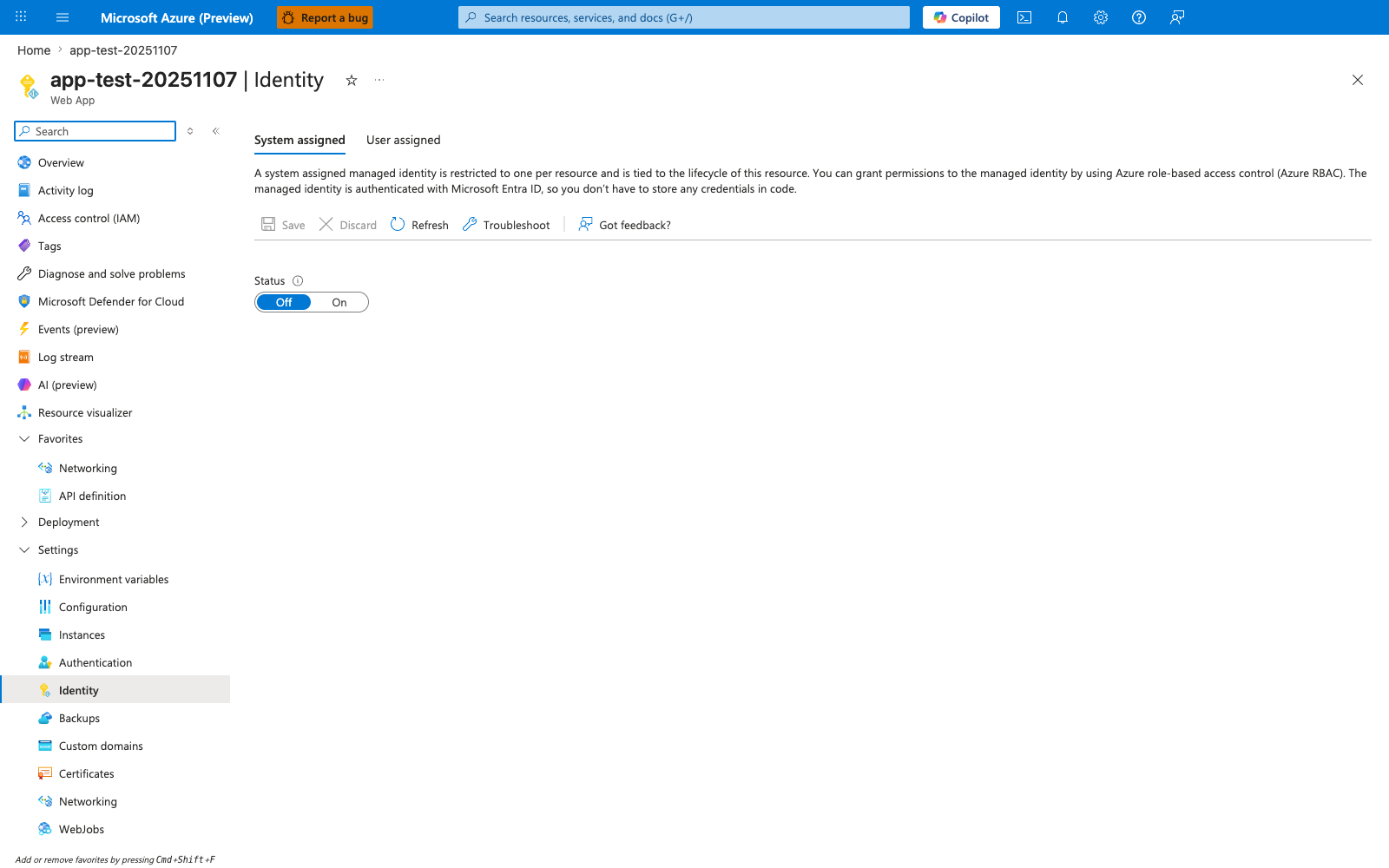
The Identity blade is the Portal entry point for the managed-identity flow this recipe uses to connect to Azure SQL without a stored password. With the System assigned tab selected and the Status toggle flipped from Off to On, App Service creates the Entra-backed identity that the SQL statements earlier in the recipe grant access to with CREATE USER ... FROM EXTERNAL PROVIDER and ALTER ROLE ... ADD MEMBER .... Use this blade as the first verification step for the recipe before testing the passwordless mssql connection from the Node.js app.