02. First Deploy
Deploy the Spring Boot reference app to Azure App Service in about five minutes with az webapp up.
Keep this tutorial simple
This page covers the fastest path to a working deployment. For VNet integration, private endpoints, and managed identity, use Recipe: Private Network Deploy.
flowchart TD
    DEV[Local Java app] -->|Build JAR| ARTIFACT[Spring Boot artifact]
    ARTIFACT -->|az webapp up| APP[Azure App Service\nLinux Java 17\nB1]
    USER[Browser or curl] -->|HTTPS| APP
    APP --> LOGS[App Service logs]

    style APP fill:#0078d4,color:#fff
    style ARTIFACT fill:#E3F2FD
style LOGS fill:#E8F5E9Prerequisites
- Completed 01. Local Run
- Azure CLI authenticated with
az login - Maven or Gradle installed
Main Content
flowchart TD
    A[Set RG APP_NAME LOCATION] --> B[Build the app]
    B --> C[Run az webapp up]
    C --> D[Verify site and health endpoint]
    D --> E[View logs]
    E --> F[Clean up]
Step 1: Set deployment variables
| Command/Parameter | Purpose |
|---|---|
RG="rg-java-guide" | Defines the resource group that az webapp up creates or reuses. |
APP_NAME="app-java-guide-abc123" | Sets the globally unique App Service app name. |
LOCATION="koreacentral" | Selects the Azure region for the new App Service resources. |
Step 2: Build the app
Choose the command that matches your project.
| Command/Parameter | Purpose |
|---|---|
mvn package | Builds the Spring Boot application and creates the deployable artifact in target/. |
mvn | Runs the Maven build tool for the current project. |
package | Runs the Maven package lifecycle phase that produces the JAR file used for deployment. |
Step 3: Deploy with az webapp up
az webapp up --name $APP_NAME --resource-group $RG --location $LOCATION --runtime "JAVA:17-java17" --sku B1
| Command/Parameter | Purpose |
|---|---|
az webapp up --name $APP_NAME --resource-group $RG --location $LOCATION --runtime "JAVA:17-java17" --sku B1 | Creates the resource group, App Service plan, and web app if needed, then deploys the current app to App Service. |
--name $APP_NAME | Uses the chosen globally unique web app name. |
--resource-group $RG | Places all created resources in the target resource group. |
--location $LOCATION | Creates the App Service resources in the selected Azure region. |
--runtime "JAVA:17-java17" | Selects the Linux Java 17 runtime stack. |
--sku B1 | Uses the Basic B1 pricing tier for a low-cost first deployment. |
Expected output
Step 4: Verify deployment
WEB_APP_URL="https://$(az webapp show --resource-group $RG --name $APP_NAME --query defaultHostName --output tsv)"
curl $WEB_APP_URL/health
az webapp show --resource-group $RG --name $APP_NAME --query "{name:name,state:state,defaultHostName:defaultHostName}" --output json
| Command/Parameter | Purpose |
|---|---|
WEB_APP_URL="https://$(az webapp show --resource-group $RG --name $APP_NAME --query defaultHostName --output tsv)" | Builds the site URL from the deployed web app hostname. |
az webapp show --resource-group $RG --name $APP_NAME --query defaultHostName --output tsv | Returns only the default hostname so the shell can build the site URL. |
--resource-group $RG | Queries the web app inside the tutorial resource group. |
--name $APP_NAME | Selects the deployed web app to inspect. |
--query defaultHostName | Extracts only the default hostname value from the response. |
--output tsv | Formats the hostname as plain text for shell substitution. |
curl $WEB_APP_URL/health | Confirms the Spring Boot health endpoint responds after deployment. |
az webapp show --resource-group $RG --name $APP_NAME --query "{name:name,state:state,defaultHostName:defaultHostName}" --output json | Verifies the app is running and returns the default hostname. |
--query "{name:name,state:state,defaultHostName:defaultHostName}" | Limits the response to the app name, state, and default hostname fields. |
--output json | Formats the verification result as JSON. |
Step 5: View logs
| Command/Parameter | Purpose |
|---|---|
az webapp log tail --resource-group $RG --name $APP_NAME | Streams live application logs from the deployed web app. |
--resource-group $RG | Targets the resource group that contains the app. |
--name $APP_NAME | Selects the specific App Service instance for log streaming. |
Expected output
Step 6: Clean up
| Command/Parameter | Purpose |
|---|---|
az group delete --name $RG --yes --no-wait | Deletes the resource group and all App Service resources created by this tutorial. |
--name $RG | Targets the tutorial resource group for removal. |
--yes | Confirms the delete operation without prompting. |
--no-wait | Starts the deletion and returns immediately. |
Troubleshooting
az webapp up fails because the app name is already taken
Choose a more unique APP_NAME value and run the deploy command again.
The app URL loads but /health fails
Use log streaming to check startup output:
| Command/Parameter | Purpose |
|---|---|
az webapp log tail --resource-group $RG --name $APP_NAME | Shows live startup and request logs so you can diagnose why the app is not healthy yet. |
--resource-group $RG | Reads logs from the resource group that contains the app. |
--name $APP_NAME | Streams logs for the specific Java web app. |
Run It in the Portal
Portal view: Web App Overview blade - first-deploy verification surface
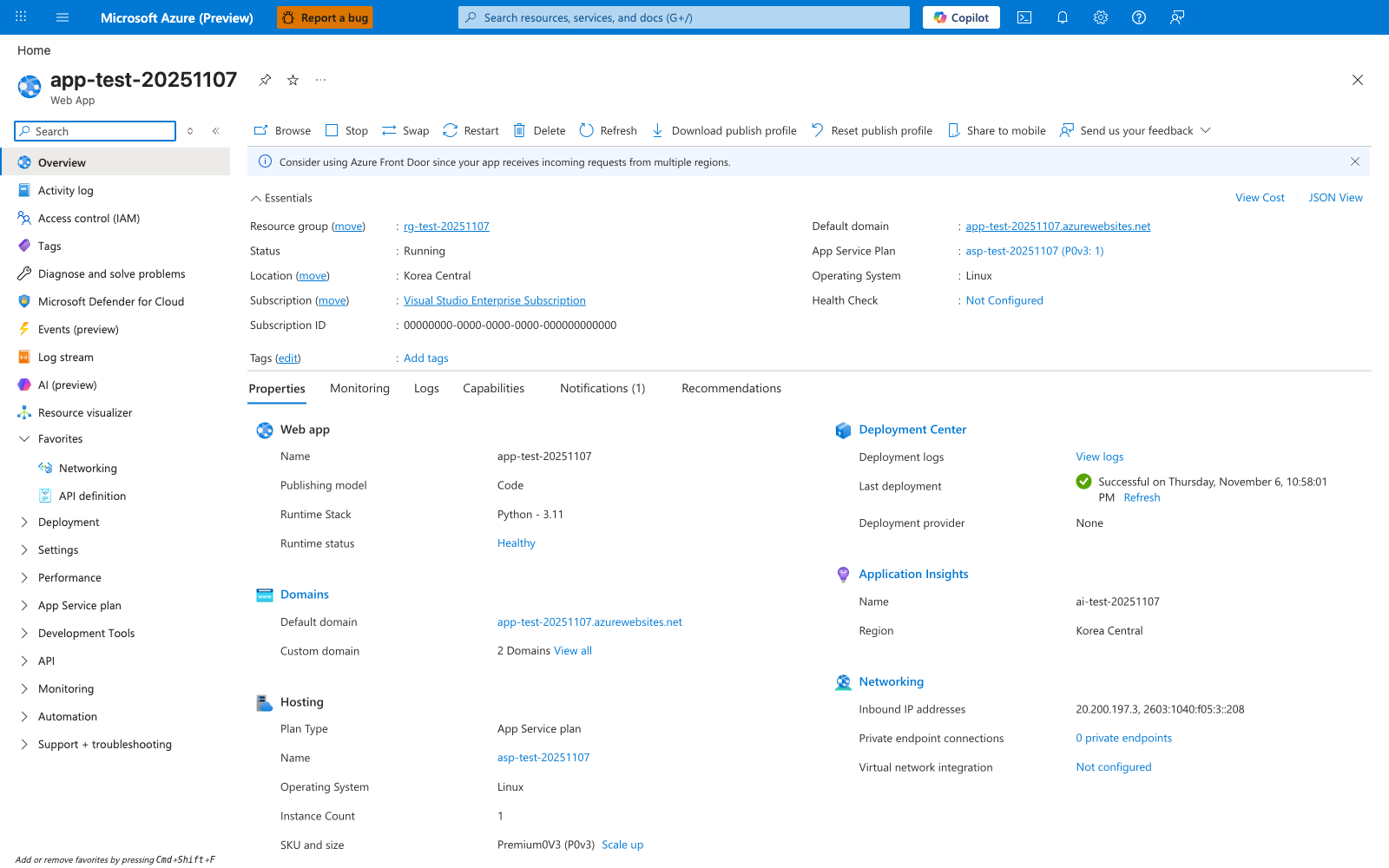
After running the az webapp deploy commands in this tutorial, the Overview blade is the first Portal verification surface. The Essentials panel confirms the app the CLI created or reused: Status: Running, Operating System: Linux, Default domain, and the attached App Service Plan are all visible on this blade. The screenshot shows Runtime Stack: Python - 3.11 because the underlying capture was taken from a Python app; for the Java SE app this tutorial deploys, the equivalent value is Java - 17 and Runtime status: Healthy then confirms the Spring Boot jar started cleanly. Use the Default domain value to open the deployed app in a browser, which is the Portal-side check that corresponds to the tutorial's /health verification step.