03. Configuration
Manage ASP.NET Core configuration safely in Azure App Service using App Settings, Connection Strings, environment-specific files, and slot-sticky values.
Infrastructure Context
Service: App Service (Windows, Standard S1) | Network: VNet integrated | VNet: ✅
This tutorial assumes a production-ready App Service deployment with VNet integration, private endpoints for backend services, and managed identity for authentication.
flowchart TD
    INET[Internet] -->|HTTPS| WA["Web App\nApp Service S1\nWindows .NET 8"]

    subgraph VNET["VNet 10.0.0.0/16"]
        subgraph INT_SUB["Integration Subnet 10.0.1.0/24\nDelegation: Microsoft.Web/serverFarms"]
            WA
        end
        subgraph PE_SUB["Private Endpoint Subnet 10.0.2.0/24"]
            PE_KV[PE: Key Vault]
            PE_SQL[PE: Azure SQL]
            PE_ST[PE: Storage]
        end
    end

    PE_KV --> KV[Key Vault]
    PE_SQL --> SQL[Azure SQL]
    PE_ST --> ST[Storage Account]

    subgraph DNS[Private DNS Zones]
        DNS_KV[privatelink.vaultcore.azure.net]
        DNS_SQL[privatelink.database.windows.net]
        DNS_ST[privatelink.blob.core.windows.net]
    end

    PE_KV -.-> DNS_KV
    PE_SQL -.-> DNS_SQL
    PE_ST -.-> DNS_ST

    WA -.->|System-Assigned MI| ENTRA[Microsoft Entra ID]
    WA --> AI[Application Insights]

    style WA fill:#0078d4,color:#fff
    style VNET fill:#E8F5E9,stroke:#4CAF50
    style DNS fill:#E3F2FD
flowchart TD
A[List current settings] --> B[Set App Settings]
B --> C[Configure Connection Strings]
C --> D[Apply appsettings.Production.json defaults]
D --> E[Mark slot-sticky values]
E --> F[Validate in running app]Prerequisites
- Tutorial 02. First Deploy completed
- Existing Windows App Service app name and resource group
What you'll learn
- App Settings and Connection Strings behavior in App Service
ASPNETCORE_ENVIRONMENTandappsettings.Production.jsonpatterns- Slot-sticky settings for staging/production swap safety
Main content
1) List current App Settings
az webapp config appsettings list \
  --resource-group "$RESOURCE_GROUP_NAME" \
  --name "$WEB_APP_NAME" \
  --output table
| Command/Code | Purpose |
|---|---|
az webapp config appsettings list --resource-group "$RESOURCE_GROUP_NAME" --name "$WEB_APP_NAME" --output table | Lists the current App Service application settings in table form. |
Use App Settings for non-secret and secret values, but prefer managed identity where possible.
2) Set environment and app-level options
az webapp config appsettings set \
  --resource-group "$RESOURCE_GROUP_NAME" \
  --name "$WEB_APP_NAME" \
  --settings ASPNETCORE_ENVIRONMENT=Production Logging__LogLevel__Default=Information FeatureFlags__UseBeta=false \
  --output json
| Command/Code | Purpose |
|---|---|
az webapp config appsettings set --resource-group "$RESOURCE_GROUP_NAME" --name "$WEB_APP_NAME" --settings ASPNETCORE_ENVIRONMENT=Production Logging__LogLevel__Default=Information FeatureFlags__UseBeta=false --output json | Sets environment and application configuration values for the web app. |
In ASP.NET Core, __ maps to : in hierarchical keys.
3) Configure Connection Strings (typed)
az webapp config connection-string set \
  --resource-group "$RESOURCE_GROUP_NAME" \
  --name "$WEB_APP_NAME" \
  --connection-string-type SQLAzure \
  --settings MainDb="Server=tcp:<server>.database.windows.net,1433;Database=<db>;Authentication=Active Directory Managed Identity;Encrypt=True;TrustServerCertificate=False;"
| Command/Code | Purpose |
|---|---|
az webapp config connection-string set --resource-group "$RESOURCE_GROUP_NAME" --name "$WEB_APP_NAME" --connection-string-type SQLAzure --settings MainDb="..." | Adds a typed Azure SQL connection string to the web app configuration. |
App Service exposes this as SQLAZURECONNSTR_MainDb to the process.
4) Production appsettings pattern
Create appsettings.Production.json for environment-specific defaults that are safe to commit:
{
  "Logging": {
    "LogLevel": {
      "Default": "Information",
      "Microsoft.AspNetCore": "Warning"
    }
  },
  "FeatureFlags": {
    "UseBeta": false
  }
}
Then use App Settings to override values per environment without rebuilding.
5) Read settings in controller/service code
public sealed record FeatureFlags(bool UseBeta);

builder.Services.Configure<FeatureFlags>(
    builder.Configuration.GetSection("FeatureFlags"));
| Command/Code | Purpose |
|---|---|
public sealed record FeatureFlags(bool UseBeta); | Defines a strongly typed configuration model for feature flags. |
builder.Services.Configure<FeatureFlags>(builder.Configuration.GetSection("FeatureFlags")); | Binds the FeatureFlags configuration section to the typed options model. |
public sealed class InfoController : ControllerBase
{
    private readonly IConfiguration _configuration;
    public InfoController(IConfiguration configuration) => _configuration = configuration;

    [HttpGet("info")]
    public IActionResult Get()
        => Ok(new
        {
            environment = _configuration["ASPNETCORE_ENVIRONMENT"] ?? "Production",
            useBeta = _configuration["FeatureFlags:UseBeta"]
        });
}
| Command/Code | Purpose |
|---|---|
_configuration["ASPNETCORE_ENVIRONMENT"] ?? "Production" | Reads the effective environment name with a production fallback. |
_configuration["FeatureFlags:UseBeta"] | Reads a nested feature flag value from configuration. |
Ok(new { ... }) | Returns the resolved configuration values in the API response. |
6) Slot-sticky settings
Use slot settings for values that must stay with a slot during swap (for example, staging database connection).
az webapp config appsettings set \
  --resource-group "$RESOURCE_GROUP_NAME" \
  --name "$WEB_APP_NAME" \
  --slot "staging" \
  --slot-settings ConnectionStrings__MainDb="Server=tcp:<staging-server>.database.windows.net,1433;Database=<staging-db>;Authentication=Active Directory Managed Identity;Encrypt=True;"
| Command/Code | Purpose |
|---|---|
az webapp config appsettings set --resource-group "$RESOURCE_GROUP_NAME" --name "$WEB_APP_NAME" --slot "staging" --slot-settings ConnectionStrings__MainDb="..." | Sets a staging-slot-only setting that stays with the slot during swaps. |
Never let staging data source swap into production
Mark environment-specific endpoints and credentials as slot-sticky. This prevents accidental production traffic against non-production dependencies.
7) Azure DevOps variable group mapping
variables:
  - group: dotnet-guide-production
  - name: webAppName
    value: '<app-name>'

- task: AzureAppServiceSettings@1
  inputs:
    azureSubscription: $(azureSubscription)
    appName: $(webAppName)
    resourceGroupName: $(resourceGroupName)
    appSettings: |
      [
        { "name": "ASPNETCORE_ENVIRONMENT", "value": "Production", "slotSetting": false },
        { "name": "FeatureFlags__UseBeta", "value": "false", "slotSetting": true }
      ]
Verification
az webapp config appsettings list --resource-group "$RESOURCE_GROUP_NAME" --name "$WEB_APP_NAME" --output table
curl --silent "https://$WEB_APP_NAME.azurewebsites.net/info"
| Command/Code | Purpose |
|---|---|
az webapp config appsettings list --resource-group "$RESOURCE_GROUP_NAME" --name "$WEB_APP_NAME" --output table | Verifies the configured App Settings on the deployed app. |
curl --silent "https://$WEB_APP_NAME.azurewebsites.net/info" | Calls the app endpoint to confirm configuration values are being read at runtime. |
Check that:
ASPNETCORE_ENVIRONMENTisProduction- App reads hierarchical configuration keys correctly
- Slot-specific values remain in their slot
Troubleshooting
App ignores changed settings
Restart app after major config updates:
| Command/Code | Purpose |
|---|---|
az webapp restart --resource-group "$RESOURCE_GROUP_NAME" --name "$WEB_APP_NAME" --output none | Restarts the web app so configuration changes are fully applied. |
Connection string not found
Inspect effective environment variables through Kudu or startup logging and confirm expected prefix (SQLAZURECONNSTR_, CUSTOMCONNSTR_).
JSON section not binding
Verify key names and nesting in appsettings.*.json, and ensure environment variable separators use double underscores.
Run It in the Portal
Portal view: Configuration > General settings blade (Portal counterpart to az webapp config set)
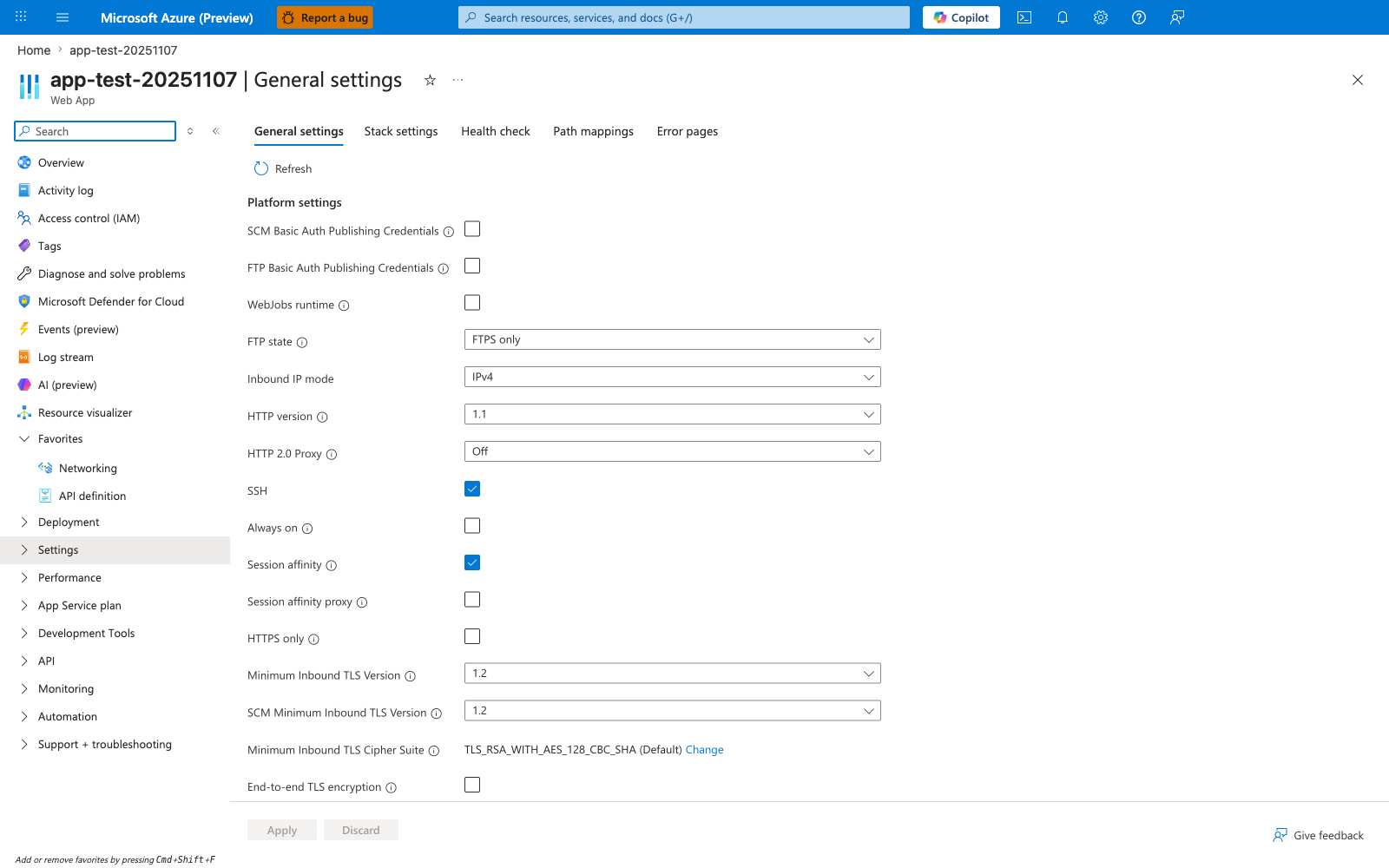
The Configuration > General settings blade is the Portal verification surface for the az webapp config set step in this tutorial. In the visible Platform settings list, HTTPS only, Always on, FTP state, HTTP version, and Minimum Inbound TLS Version are all shown directly, and the screenshot also makes the current defaults concrete: Always on and HTTPS only are both unchecked here. Use this blade to confirm those runtime-level settings before moving on to app settings and connection strings elsewhere in the tutorial.
See Also
- 04. Logging & Monitoring
- Recipes: Key Vault References
- For platform details, see Azure App Service Guide