01. Local Run
Run the ASP.NET Core 8 reference API locally using the same port and environment conventions expected by Azure App Service on Windows.
Infrastructure Context
Service: App Service (Windows, Standard S1) | Network: VNet integrated | VNet: ✅
This tutorial assumes a production-ready App Service deployment with VNet integration, private endpoints for backend services, and managed identity for authentication.
flowchart TD
    INET[Internet] -->|HTTPS| WA["Web App\nApp Service S1\nWindows .NET 8"]

    subgraph VNET["VNet 10.0.0.0/16"]
        subgraph INT_SUB["Integration Subnet 10.0.1.0/24\nDelegation: Microsoft.Web/serverFarms"]
            WA
        end
        subgraph PE_SUB["Private Endpoint Subnet 10.0.2.0/24"]
            PE_KV[PE: Key Vault]
            PE_SQL[PE: Azure SQL]
            PE_ST[PE: Storage]
        end
    end

    PE_KV --> KV[Key Vault]
    PE_SQL --> SQL[Azure SQL]
    PE_ST --> ST[Storage Account]

    subgraph DNS[Private DNS Zones]
        DNS_KV[privatelink.vaultcore.azure.net]
        DNS_SQL[privatelink.database.windows.net]
        DNS_ST[privatelink.blob.core.windows.net]
    end

    PE_KV -.-> DNS_KV
    PE_SQL -.-> DNS_SQL
    PE_ST -.-> DNS_ST

    WA -.->|System-Assigned MI| ENTRA[Microsoft Entra ID]
    WA --> AI[Application Insights]

    style WA fill:#0078d4,color:#fff
    style VNET fill:#E8F5E9,stroke:#4CAF50
    style DNS fill:#E3F2FD
flowchart TD
A[dotnet restore] --> B[dotnet run]
B --> C[Bind to HTTP_PLATFORM_PORT or PORT]
C --> D[Test /health and /info]
D --> E[Switch Development or Production mode]Prerequisites
- .NET 8 SDK installed (
dotnet --info) - Local clone of
azure-app-service-practical-guide - Terminal with access to
apps/dotnet-aspnetcore/GuideApi
What you'll learn
- How to start the API with
dotnet run - Why
HTTP_PLATFORM_PORTmatters on Windows App Service - How to validate
/healthand/info - How Development and Production modes differ
Main content
1) Run the app
dotnet restore "apps/dotnet-aspnetcore/GuideApi/GuideApi.csproj"
dotnet run --project "apps/dotnet-aspnetcore/GuideApi/GuideApi.csproj"
| Command/Code | Purpose |
|---|---|
dotnet restore "apps/dotnet-aspnetcore/GuideApi/GuideApi.csproj" | Restores the NuGet packages required by the Guide API project. |
dotnet run --project "apps/dotnet-aspnetcore/GuideApi/GuideApi.csproj" | Builds and starts the ASP.NET Core app locally. |
By default, the app listens on port 5000 if no environment variable is provided.
2) Understand port binding logic
Program.cs uses a Windows-first App Service binding sequence:
var port = Environment.GetEnvironmentVariable("HTTP_PLATFORM_PORT")
    ?? Environment.GetEnvironmentVariable("PORT")
    ?? "5000";

builder.WebHost.UseUrls($"http://+:{port}");
| Command/Code | Purpose |
|---|---|
Environment.GetEnvironmentVariable("HTTP_PLATFORM_PORT") | Reads the Windows App Service port provided by IIS integration. |
Environment.GetEnvironmentVariable("PORT") | Falls back to a generic hosting port variable when HTTP_PLATFORM_PORT is not set. |
?? "5000" | Uses port 5000 as the local default when no platform variable exists. |
builder.WebHost.UseUrls($"http://+:{port}") | Configures Kestrel to listen on the resolved port for local and hosted traffic. |
HTTP_PLATFORM_PORT: provided by IIS integration on Windows App ServicePORT: fallback used in some hosting environments5000: local fallback for developer machines
Do not hardcode localhost-only binding
UseUrls("http://localhost:5000") can fail in hosted environments. http://+:{port} ensures the worker accepts traffic from the platform front end.
3) Test core endpoints
| Command/Code | Purpose |
|---|---|
curl --silent "http://localhost:5000/health" | Calls the health endpoint to confirm the app is running. |
curl --silent "http://localhost:5000/info" | Calls the info endpoint to inspect runtime metadata such as environment. |
Expected /health shape:
4) Toggle environments locally
Run in Development:
ASPNETCORE_ENVIRONMENT=Development dotnet run --project "apps/dotnet-aspnetcore/GuideApi/GuideApi.csproj"
| Command/Code | Purpose |
|---|---|
ASPNETCORE_ENVIRONMENT=Development dotnet run --project "apps/dotnet-aspnetcore/GuideApi/GuideApi.csproj" | Starts the app with Development settings and middleware enabled. |
Run in Production:
ASPNETCORE_ENVIRONMENT=Production dotnet run --project "apps/dotnet-aspnetcore/GuideApi/GuideApi.csproj"
| Command/Code | Purpose |
|---|---|
ASPNETCORE_ENVIRONMENT=Production dotnet run --project "apps/dotnet-aspnetcore/GuideApi/GuideApi.csproj" | Starts the app with Production configuration for local parity checks. |
Typical differences:
- Developer exception pages are disabled in Production
- Logging filters may be stricter
- Production appsettings override behavior applies
5) Generate request logs
If your app includes sample logging routes, invoke them now to create telemetry baseline before cloud deployment.
| Command/Code | Purpose |
|---|---|
curl --silent "http://localhost:5000/api/requests/log-levels?userId=local-user" | Sends a sample request that can generate log entries before deployment. |
6) Azure DevOps context (why this matters)
Local behavior should mirror pipeline-produced artifacts. A minimal pipeline step for local parity:
- script: dotnet publish --configuration Release --output $(Build.ArtifactStagingDirectory)
  displayName: Publish app artifacts
  workingDirectory: apps/dotnet-aspnetcore/GuideApi
Verification
- Terminal shows startup without port conflict
/healthreturns HTTP 200 and JSON payload/inforeports expectedenvironmentvalue- No unhandled exception appears during test requests
| Command/Code | Purpose |
|---|---|
curl --include --request GET "http://localhost:5000/health" | Verifies the health endpoint response including HTTP headers and status code. |
Troubleshooting
Port already in use
Stop the previous process and rerun, or test with platform-style port simulation:
| Command/Code | Purpose |
|---|---|
HTTP_PLATFORM_PORT=5050 dotnet run --project "apps/dotnet-aspnetcore/GuideApi/GuideApi.csproj" | Simulates the port injection behavior used by Windows App Service. |
Missing .NET SDK
| Command/Code | Purpose |
|---|---|
dotnet --list-sdks | Lists installed .NET SDK versions on the local machine. |
Install .NET 8 SDK if not listed.
Wrong environment behavior
Print current environment at startup:
| Command/Code | Purpose |
|---|---|
Console.WriteLine($"ASPNETCORE_ENVIRONMENT={builder.Environment.EnvironmentName}"); | Prints the effective ASP.NET Core environment during startup for debugging. |
Run It in the Portal
Portal view: App Service plan - the deployment target this tutorial emulates locally
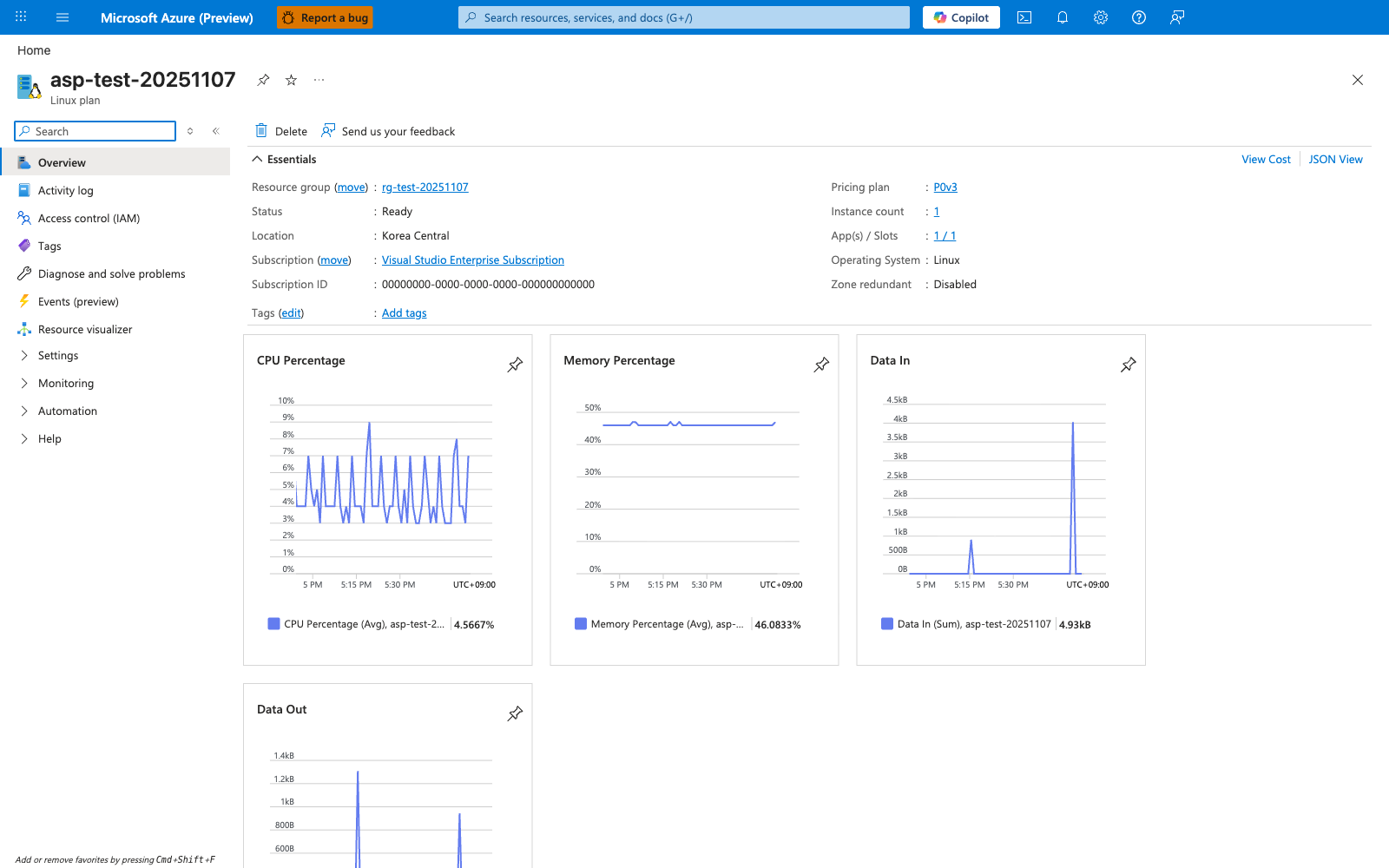
Your local ASP.NET Core run with dotnet run in this tutorial is meant to mirror the runtime shape of an App Service-hosted web app. This particular screenshot was captured from a Python deployment, so the visible App Service Plan kind: Linux and Operating system: Linux reflect that deployment; for the .NET 8 path in this guide the equivalent values read Windows because the deploy step uses --runtime "DOTNETCORE:8.0" on a Windows App Service plan. The CPU Percentage and Memory Percentage charts on the right are the Portal-side signals you compare against when local runs suggest the app is using too much CPU or memory under load, and the hosted-app list at the bottom confirms an App Service plan is the shared deployment target used by later tutorials.
See Also
- 02. First Deploy
- 03. Configuration
- For platform details, see Azure App Service Guide